

How to use Kolcast
Everything, step by step, with pictures of the real screens. Start from what you do, or read it all below.
Where to start
You run the account
You host webinars
You record a podcast
You're in the audience
You teach a course
Something isn't working
Getting started: opening an account and signing in
There are no passwords. You sign in with a 6-digit code sent to your email, or with your Google account.
Opening an account
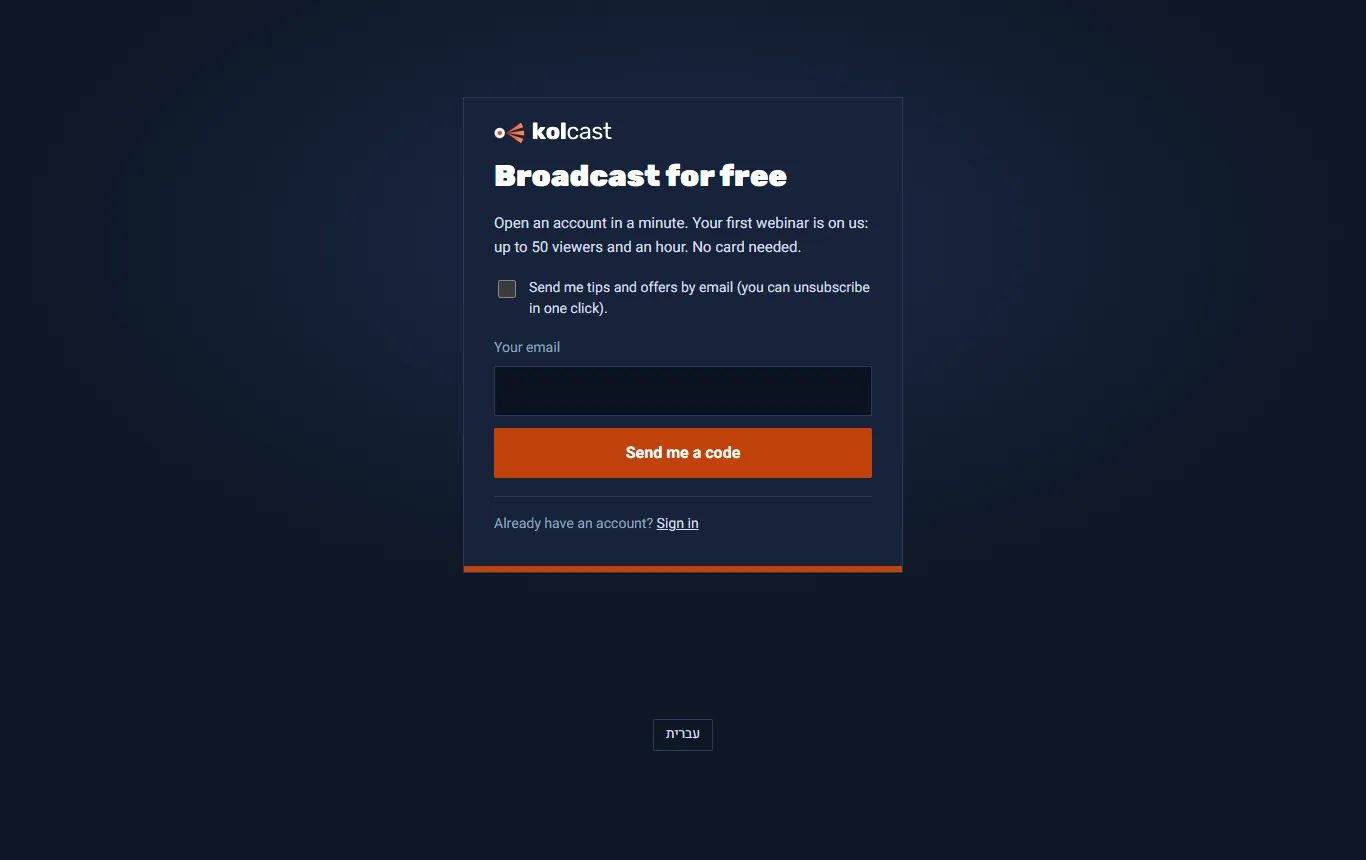
- Go to the site and click "Start for free". You reach the "Broadcast for free" screen.
- Click "Continue with Google", or type your email and click "Send me a code".
- Type the code from the email. It is valid for 10 minutes.
- Step 1, "Your organisation": type your organisation's name and choose an address. This is the address your audience will come to.
- Step 2, "What will you mostly do?": webinars, podcasts, or both. This only decides what shows first. Everything stays open to you either way.
- Step 3, "Your look": upload a logo and pick a color. You can skip this and do it later in Settings.
Signing in next time
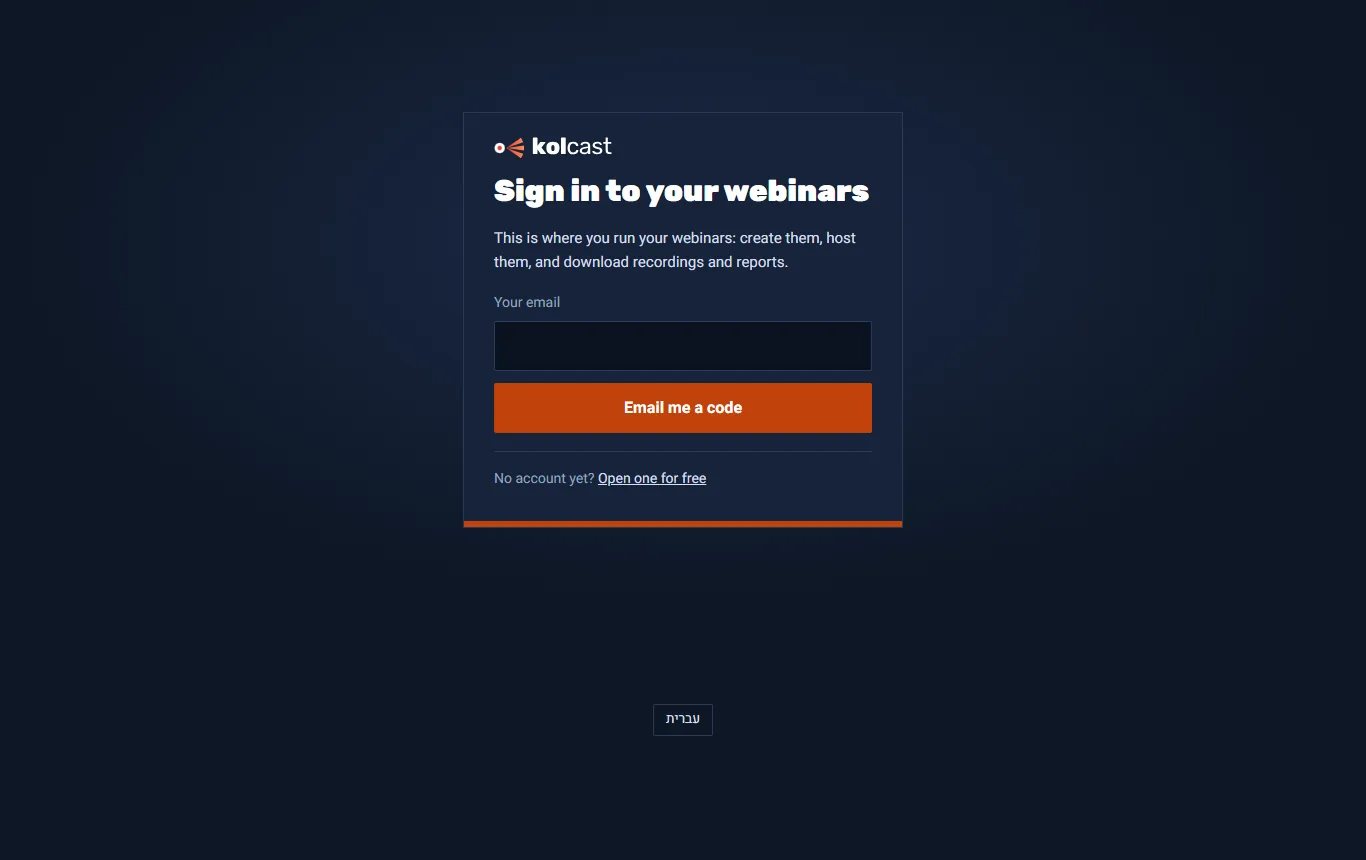
- Go to "Sign in to your webinars".
- Type your email and click "Email me a code", or sign in with Google.
- Type the code. Your computer remembers you for 30 days.
The dashboard
The main screen after you sign in. Here you see all your webinars, and from here you go anywhere.
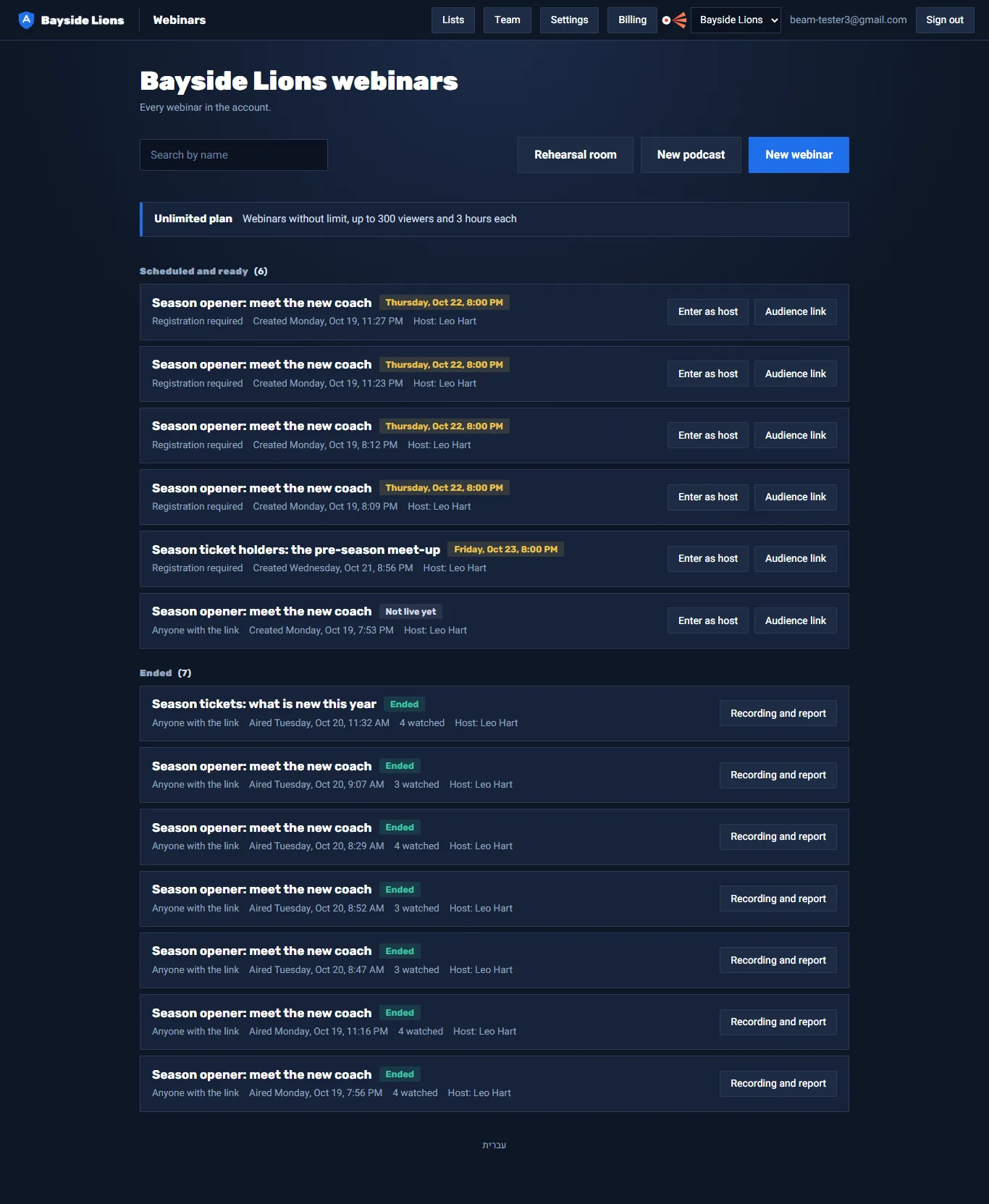
- At the top: the buttons "New webinar", "New podcast" and "Rehearsal room". With 6 webinars or more, a search by name shows up too.
- The plan bar: your plan, and how many webinars are left this month.
- Webinars in three groups: "Live now", "Scheduled and ready" and "Ended". Next to each one you see how many watched and how many registered.
- Next to a webinar that hasn't ended: "Enter as host", and "Audience link", which copies the link.
- Next to a webinar that ended: "Recording and report".
- The top bar: "Lists", "Team", "Settings", "Billing" (account owner only), and "Courses" when they are open to you.
Rehearsal room
A private room to check your camera, microphone and screen sharing before a real webinar. Nobody else can come in. You can't go live from it, and it never counts toward your plan. Each click opens a new room.
Live webinar: creating and preparing
Creating a webinar
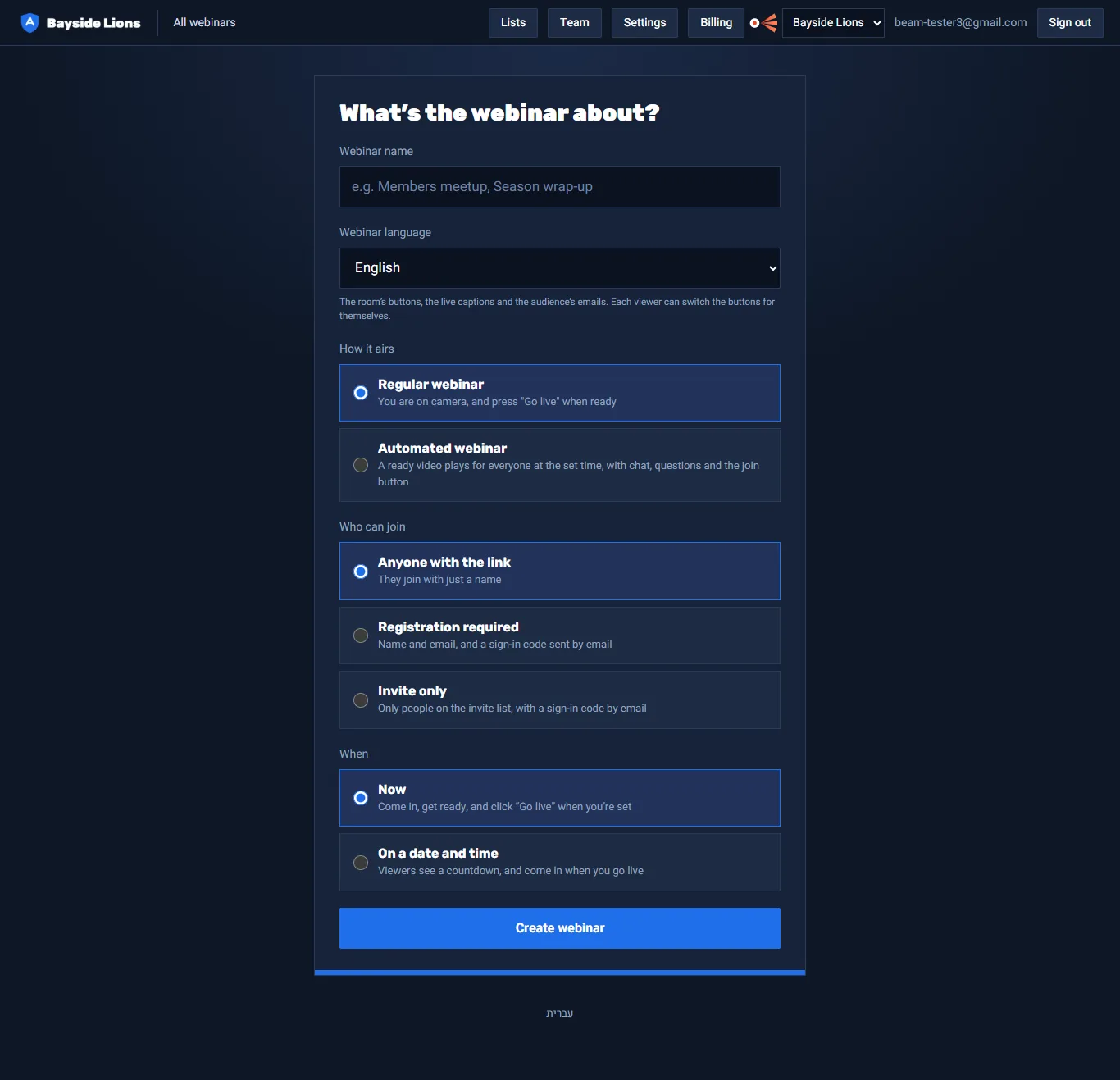
- On the dashboard, click "New webinar".
- Webinar name and webinar language. The language sets the buttons in the room, the captions and the emails to your audience.
- "How it airs": "Regular webinar" (you, on camera), or "Automated webinar" (a ready video, see part 6).
- "Who can join": pick one of four ways (in the table below).
- "When": "Now", or "On a date and time". For a scheduled time, the audience sees a countdown.
- Click "Create webinar", and you reach the webinar's page.
| Way in | What the audience does | Good for |
|---|---|---|
| Anyone with the link | Types a name and joins. | A webinar open to everyone. |
| Registration required | Name and email, and a code sent by email. For a scheduled webinar they get a personal link and a reminder an hour before. | When you want to know who came, and to collect emails. |
| Invite only | Only emails on the invite list, with a code. | Club members, employees, clients. |
| Subscribers only | Signs in with their account on your site. Shows up only after we have connected your subscriber list. | Paying subscribers. |
The webinar's page: the links
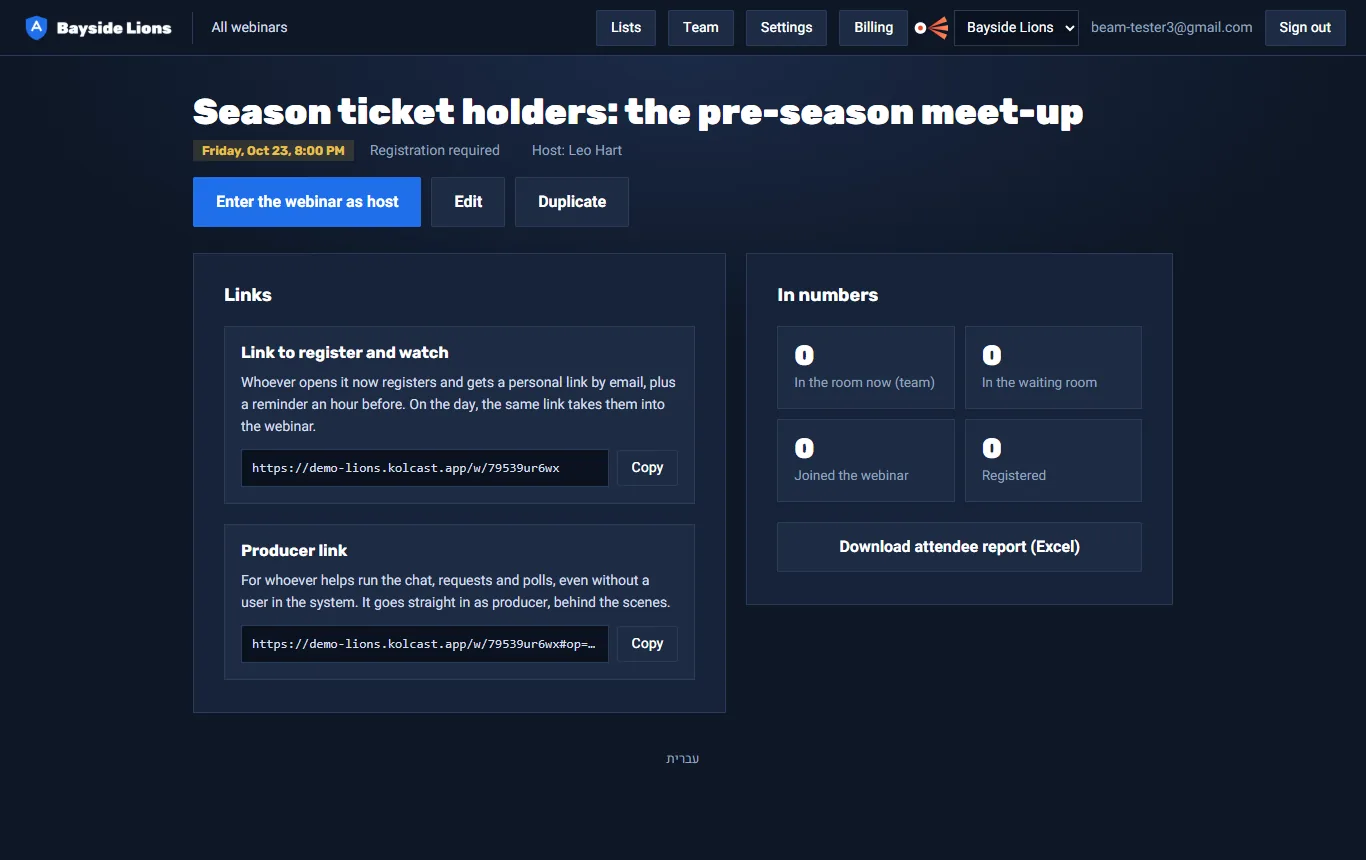
After you create it, you reach the webinar's page. It has two links:
- "Audience link": this is the one you send to your audience, by email, on WhatsApp or on your site. For a scheduled webinar with registration the title is "Link to register and watch": whoever opens it now registers, and on the day the same link lets them in.
- "Producer link": for whoever helps you run the chat, requests and polls. They come straight in as a producer, even without a user in the system.
The page also has "Edit" (name and time; whoever registered gets an email about the new time), "Cancel webinar" (registrants get an email), "Duplicate", and numbers that update every 10 seconds.
Live webinar: during the broadcast
HostEntering the room
- On the dashboard or the webinar's page, click "Enter as host". The room opens in a new tab.
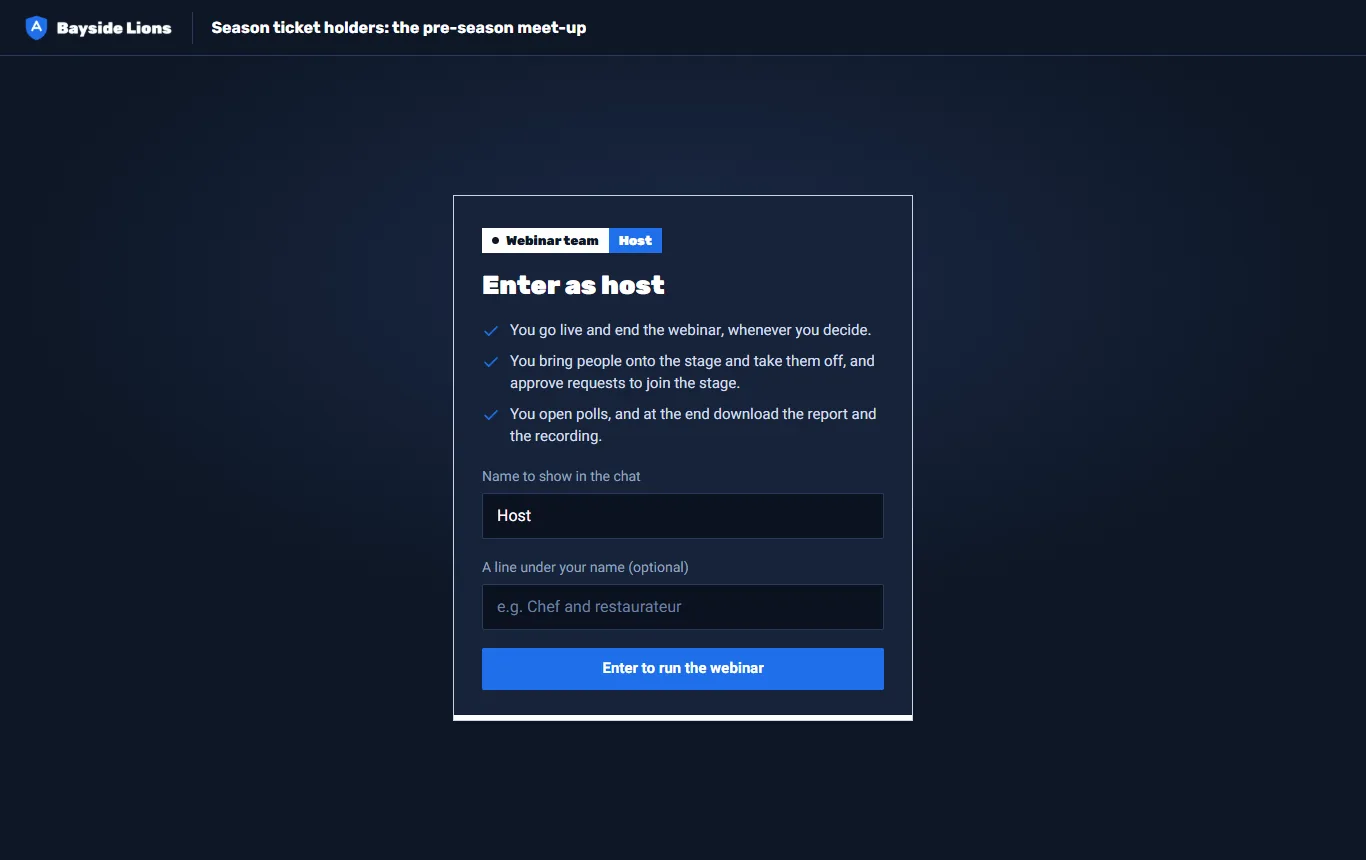
- On the "Enter as host" screen, check the name that will show in the chat, and click "Enter to run the webinar".
- The browser asks for permission to use the camera and microphone. Allow it.
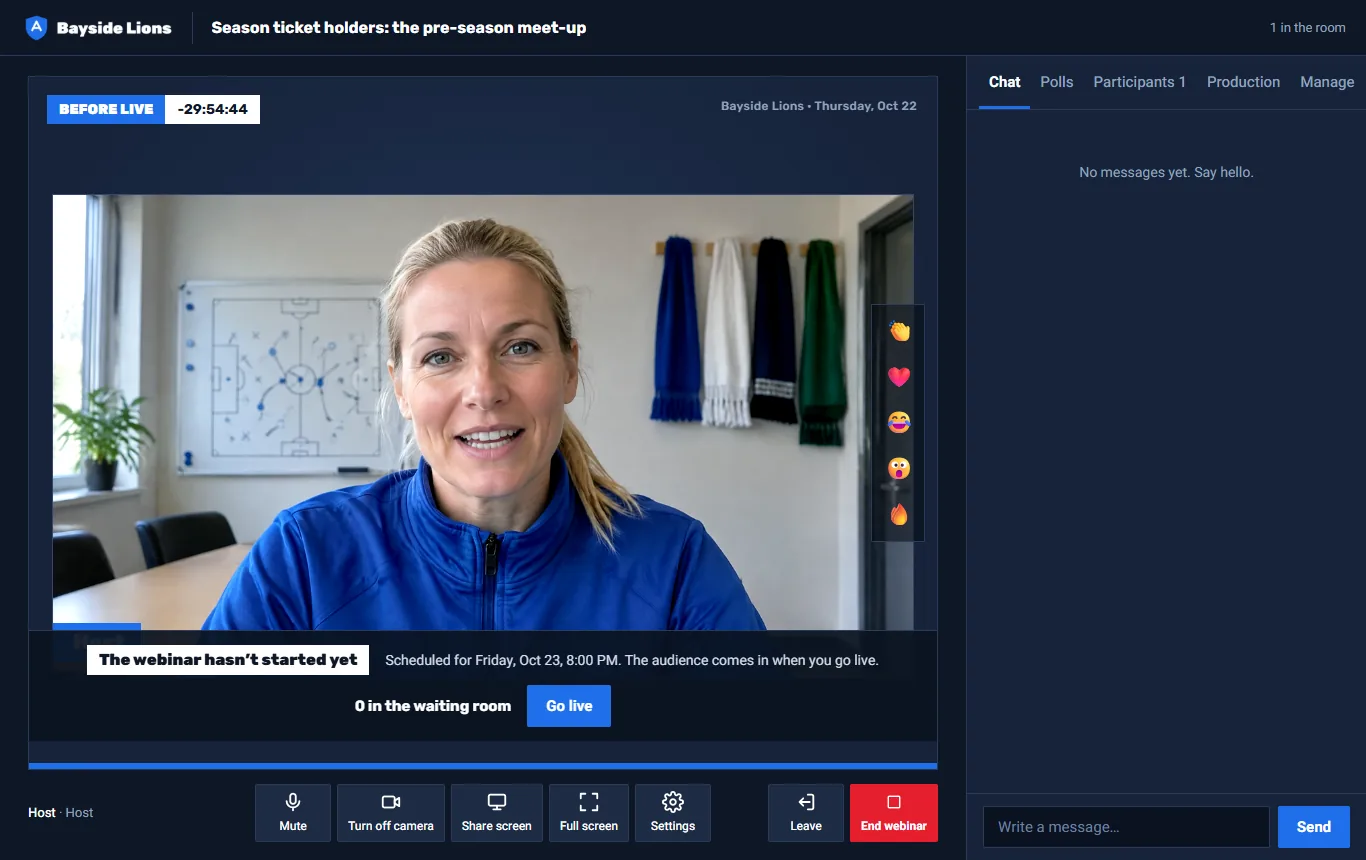
Now you are in the room, but the audience isn't yet. The bar at the bottom says "The webinar hasn’t started yet", and shows how many are waiting to come in. This is the time to get ready: check the lighting, open your slides, pick a background.
HostGoing live
Click "Go live" and confirm. Everyone waiting comes in at once, and the recording starts by itself.
The buttons at the bottom
| Button | What it does |
|---|---|
| Mute / Microphone | Turns the microphone off and on. |
| Turn off camera / Camera | Turns the camera off and on. While it is off, your initials show. |
| Share screen | Shares a screen, a window or a tab. One person shares at a time. The shared screen takes most of the view, with the people beside it. |
| Full screen | The room on the whole screen. |
| Settings | Name, switching camera and microphone, background (blur, dark studio, light wall, your brand color, or a picture of your own), and the language of the buttons. |
| Leave | You leave the room. The webinar goes on, but the recording stops when the host leaves. |
| End webinar | Ends it for everyone. There's no going back after this. |
The tabs on the side
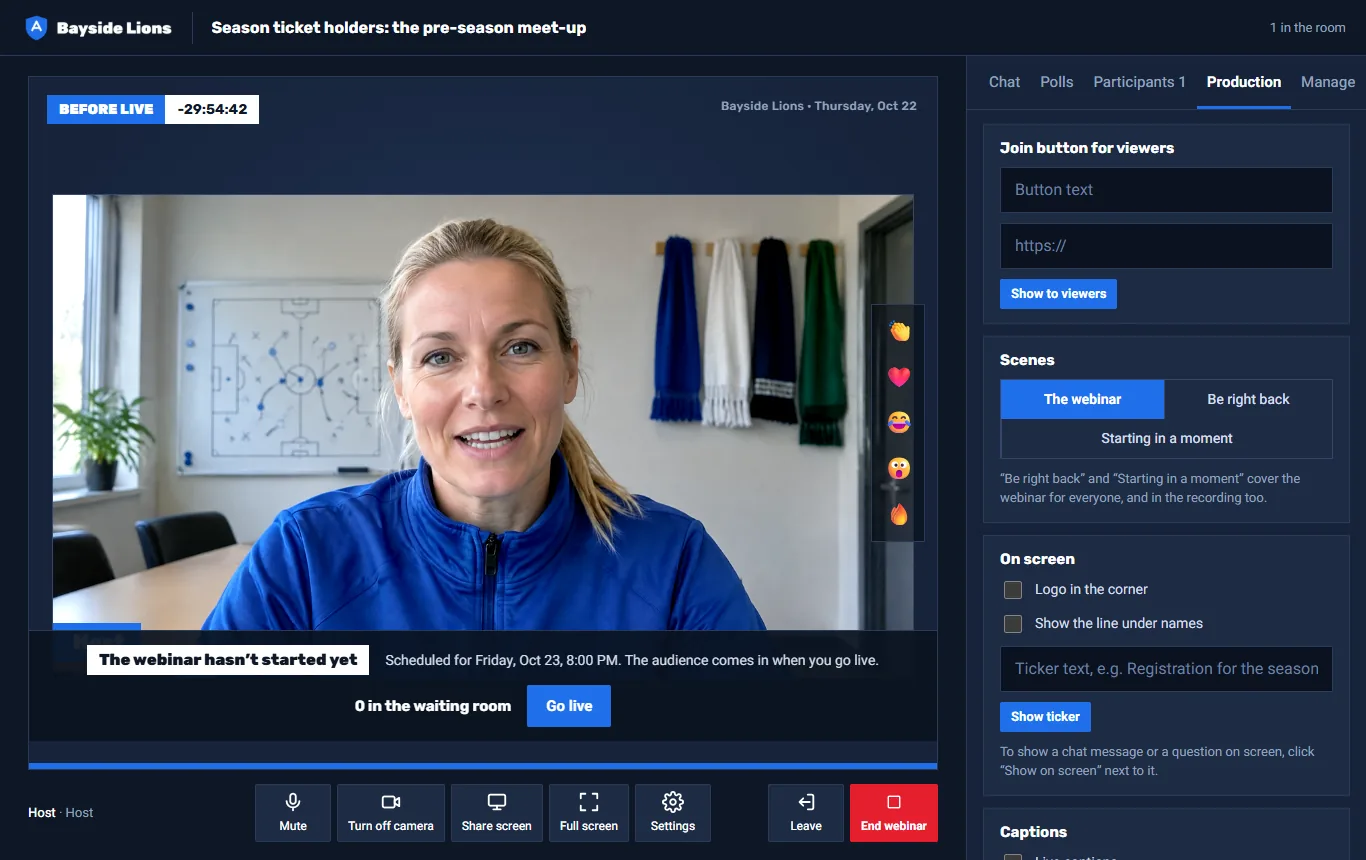
- Chat: next to each message, "Show on screen" (shows it on screen for everyone) and "Delete".
- Q&A: shows up when you open questions from the audience. Everyone votes, and the most wanted questions rise to the top. You can mark one "Answered" or show it on screen.
- Polls: write a question and 2 to 5 answers, and click "Open poll". A poll can be anonymous. You see the percentages live.
- Participants: everyone in the room. Next to each one: "Bring on stage", "Mute", "Remove", "Block", and for the host also allowing screen sharing and "Make producer".
- Production (host and producer):
- Join button for viewers: text and a link, then click "Show to viewers". The button shows on everyone's screen, and the clicks are counted in the report.
- Scenes: "Be right back" or "Starting in a moment" cover the broadcast for everyone, in the recording too.
- On screen: the logo in the corner, a description line under names, and a scrolling message bar.
- Live captions, for whoever speaks from Chrome or Edge on a computer.
- Questions from the audience: a switch that opens the Q&A tab.
- Chat: closing the chat to the audience, and slow mode (one message every few seconds).
- Manage (host only): the producer link, the audience link, the recordings, and downloading the attendee report.
HostBringing someone from the audience on stage
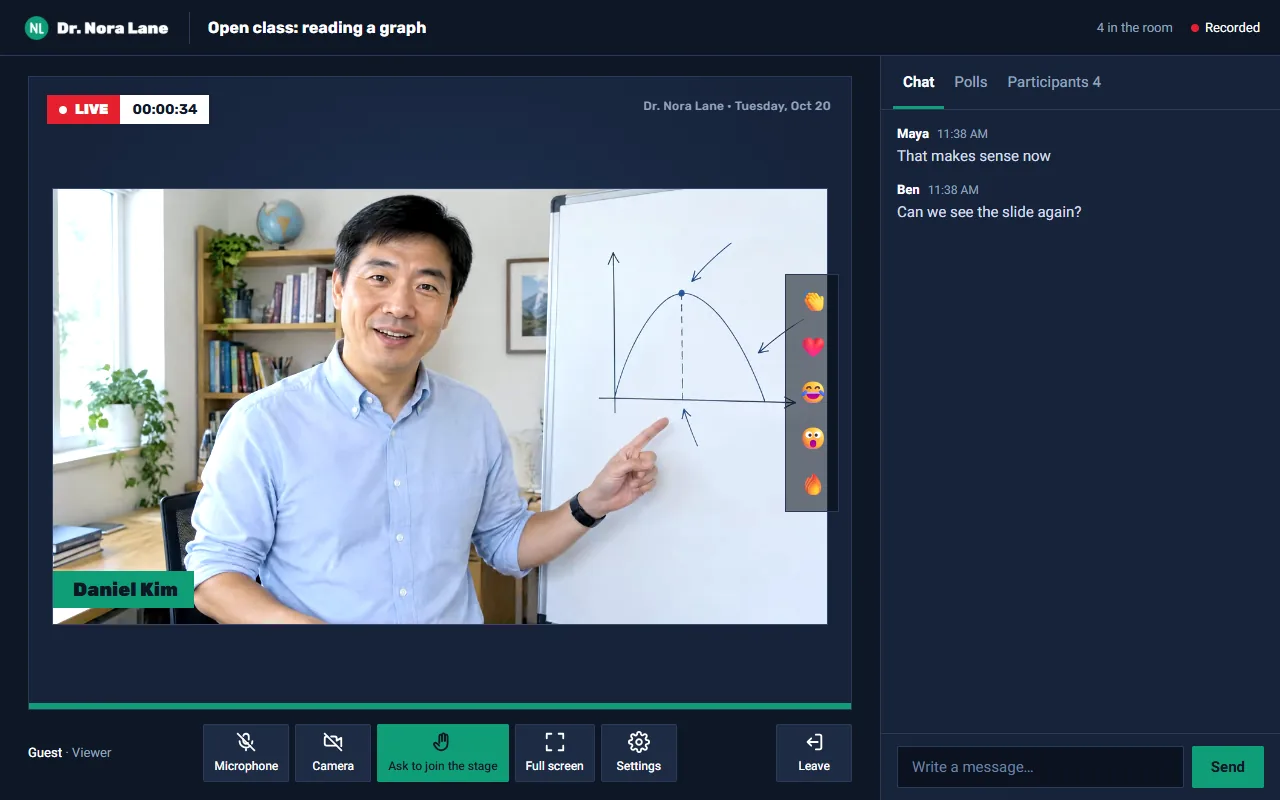
- A viewer can click "Ask to join the stage". The request shows at the top of the side panel, with "Bring on stage" and "Decline".
- Or the host clicks "Bring on stage" next to a viewer, and the viewer gets an invitation and decides whether to come up.
- Up to 10 people on stage at once, the host included.
ProducerWhat the producer does
Comes in with the producer link, behind the scenes, and the audience doesn't see them in the list. They run the chat, the requests to join the stage, the questions and the polls, and can also start and end the webinar. They don't have the "Manage" tab (recordings, report and links).
Broadcast time
Each plan has a broadcast length. 10 minutes before the end a warning shows, and you can click "Extend 30 minutes", once. When the time is up, the webinar ends by itself.
Live webinar: after the broadcast
- Click "End webinar" and confirm. The viewers are disconnected.
- The recording is saved. This takes a few seconds.
- On the ending screen: download the recording, download the report, and the "Replay for the audience" switch (on by default).
- About 3 minutes after the end, everyone whose email is known gets a thank-you email, with a link to the replay and a rating question. You can turn this email off in Settings.
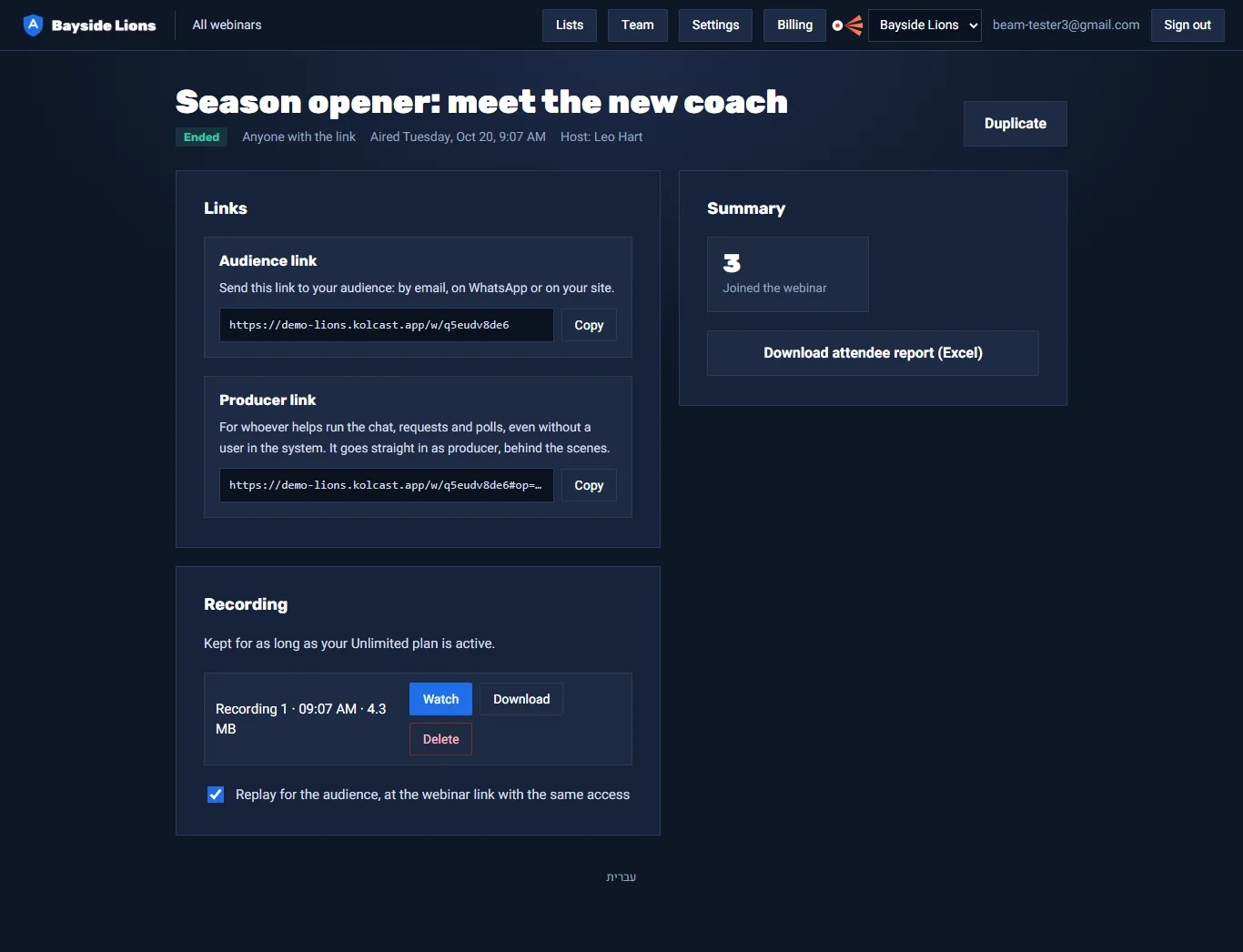
- The recording: a video file of everything on screen, with everyone's sound. It is recorded in the host's browser, so if the host leaves in the middle, the recording stops and picks up when they return ("Recording 2").
- The report: a file that opens in Excel, with the attendees, the registrants, the ratings, the clicks on the join button, the chat, the questions and the polls.
- The replay: at the same link and with the same access as the webinar.
- How long it's kept: by plan (in the appendix). A week before the end, an email reminds you to download it.
Automated webinars and series
A ready video that plays for the whole audience at the same moment, at the time you set, with chat, questions and a join button. On paid plans (Basic and Unlimited).
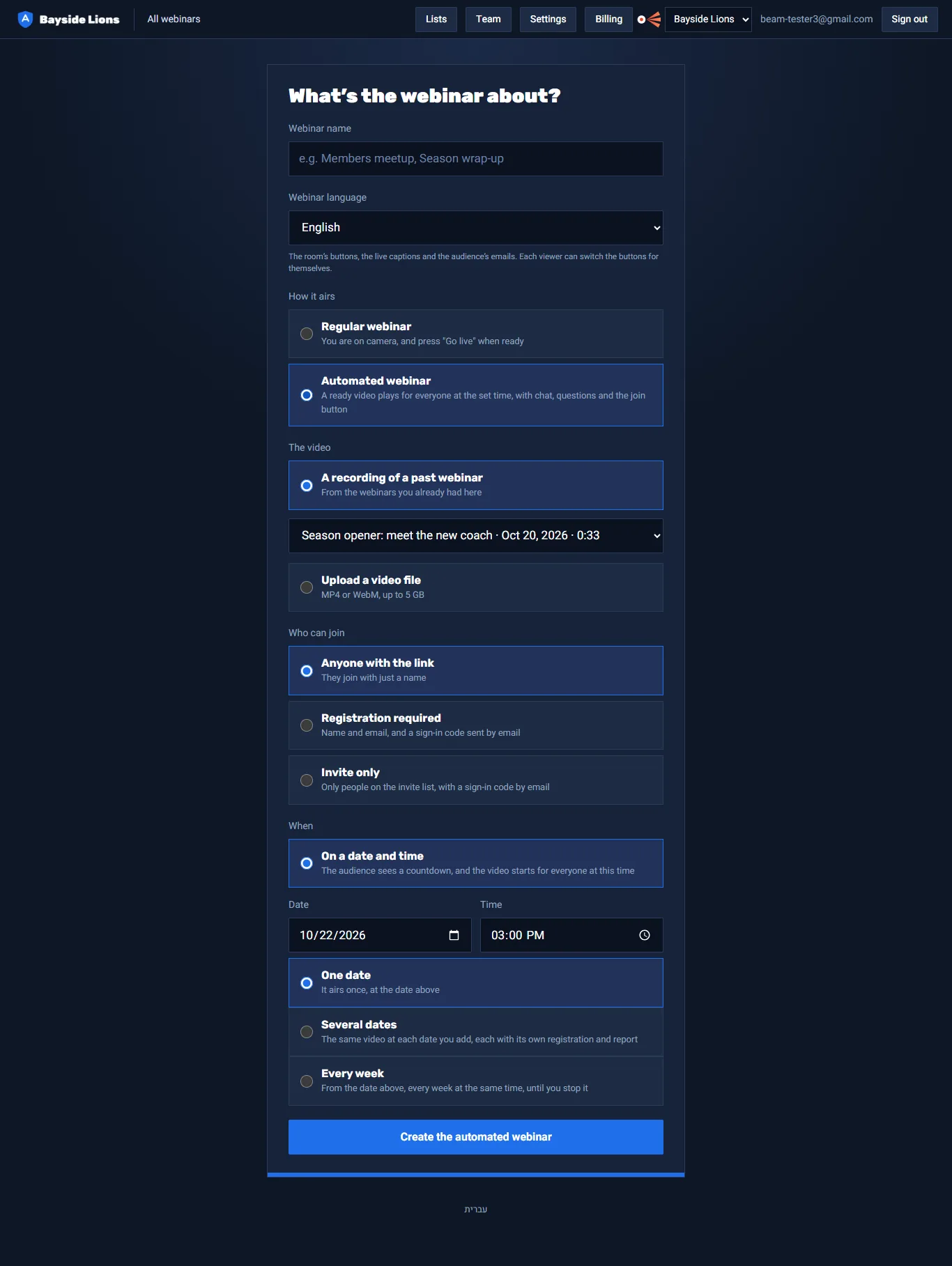
- In "New webinar", choose "Automated webinar".
- The video: "A recording of a past webinar" from the list, or "Upload a video file" (MP4 or WebM, up to 5GB). Don't close the page until the upload finishes.
- The time: a date and time. You can have one date, several dates (up to 10), or every week until you stop it.
- Click "Create the automated webinar".
- On the webinar's page, set up a join button: text, a link, and at which minute of the video it shows.
- There's nothing to click: the webinar starts by itself and ends when the video ends.
- Latecomers join in the middle, exactly where everyone else is.
- A series: the audience has one fixed link that always opens the next date. Each date has its own registration and report, and on the Basic plan each date counts as a webinar.
- Questions left unanswered are emailed to the host after the webinar.
- Stopping: on the webinar's page, "Stop the weekly broadcast". Whoever registered for dates that were called off gets an email.
Podcast
A studio in the browser for you and up to 3 guests. Each speaker is recorded on their own device at full quality, and you get a separate file for each one. There's no audience.
HostCreating an episode
- On the dashboard, click "New podcast".
- The episode name, the studio language, and "What to record": "Video and sound" or "Sound only".
- Click "Create the episode".
- On the episode's page, copy the "Link for guests" and send it to your guests. They don't need an account.
HostRecording
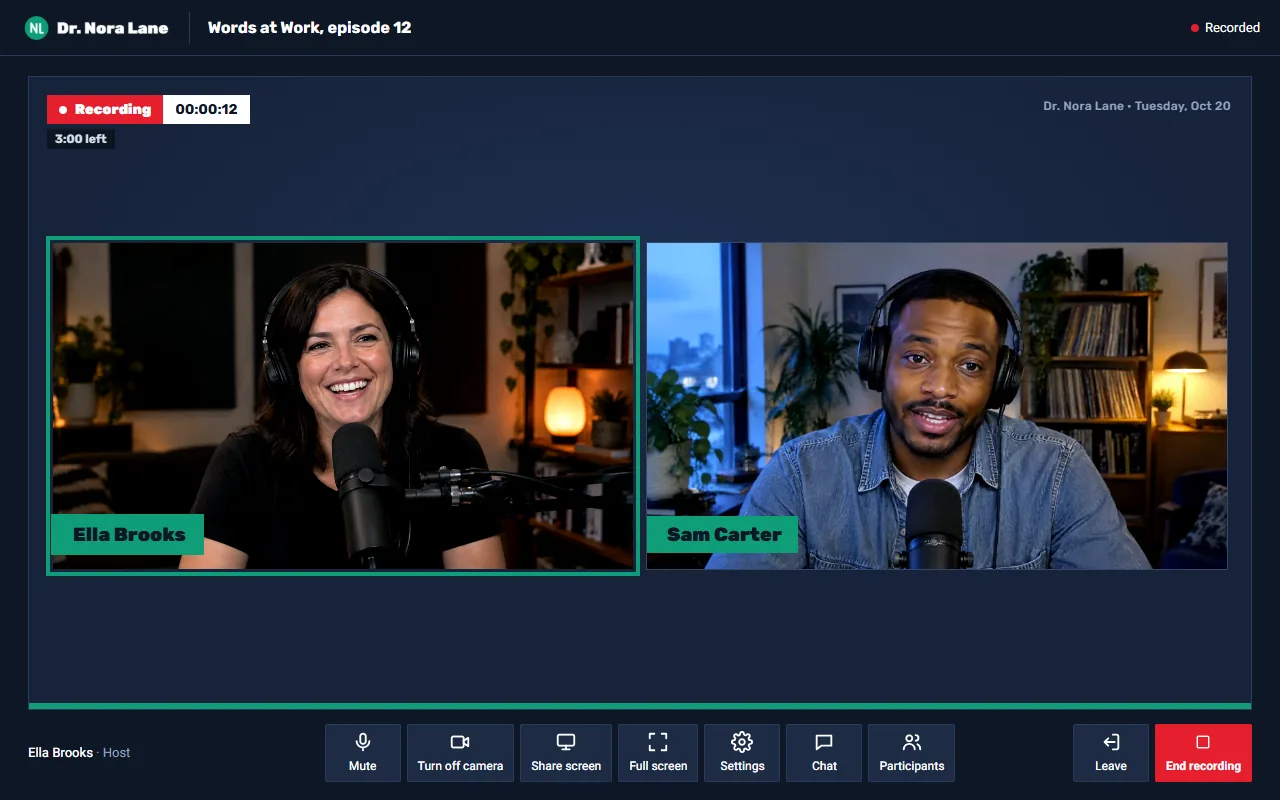
- Click "Enter the studio". Before you come in, you see your camera and a bar that shows the microphone is picking up sound.
- When everyone is in and ready, click "Start recording". In the participants list you see "recording ✓" next to each speaker.
- At the end, click "End recording".
- Don't close the page until "Your recording is in" shows. Your guests see a message like this too.
The files
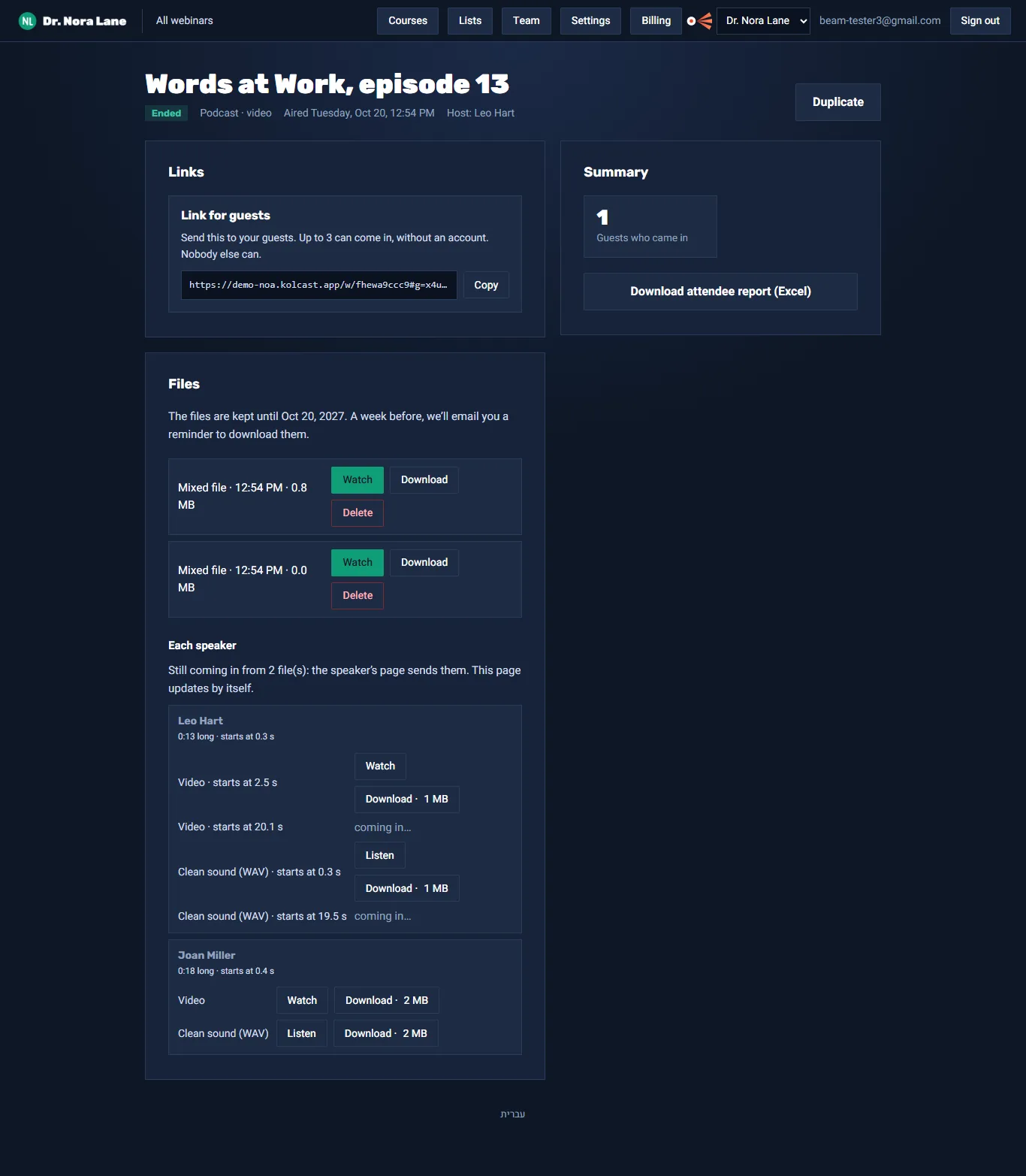
When all the files are in, you get an email. On the episode's page, under "Files":
- A mixed file of the whole episode.
- Each speaker separately: video, and clean sound (WAV). Next to each file it says "starts at X s": use this to line the files up in your editing software.
Courses: for the creator
Building a course
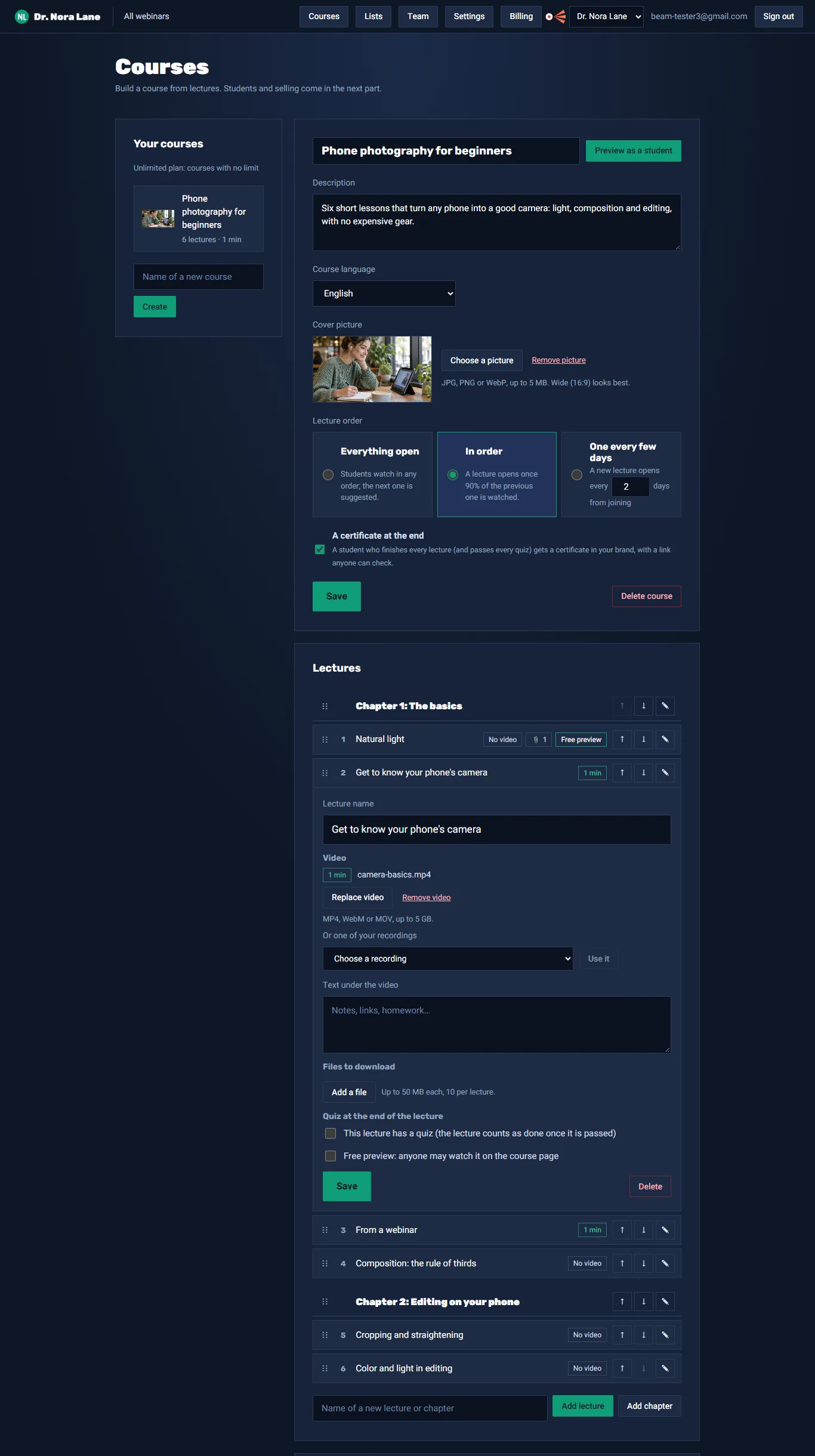
- In the top bar, click "Courses".
- Type a name for the course and click "Create".
- In the course details: description, language, cover picture, lecture order (everything open / in order / a lecture every few days), and a certificate of completion.
- Add lectures and chapters. Change the order by dragging or with the arrows.
- Open a lecture (✎) and add:
- A video: upload a file, or pick a webinar recording from the list.
- Text under the video, and files to download (up to 10).
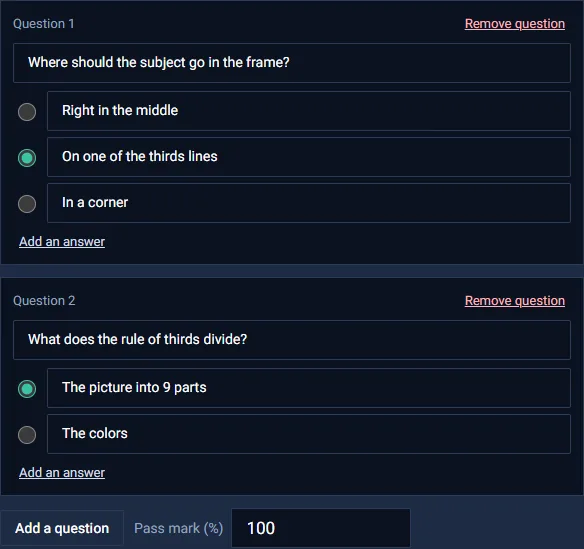
- A quiz at the end of the lecture: questions, answers, the right answer and a pass mark. A lecture with a quiz counts as done only once the quiz is passed.
- Free preview: anyone who comes to the course page can watch this lecture.
- "Preview as a student" shows the course exactly as a student will see it.
Selling the course
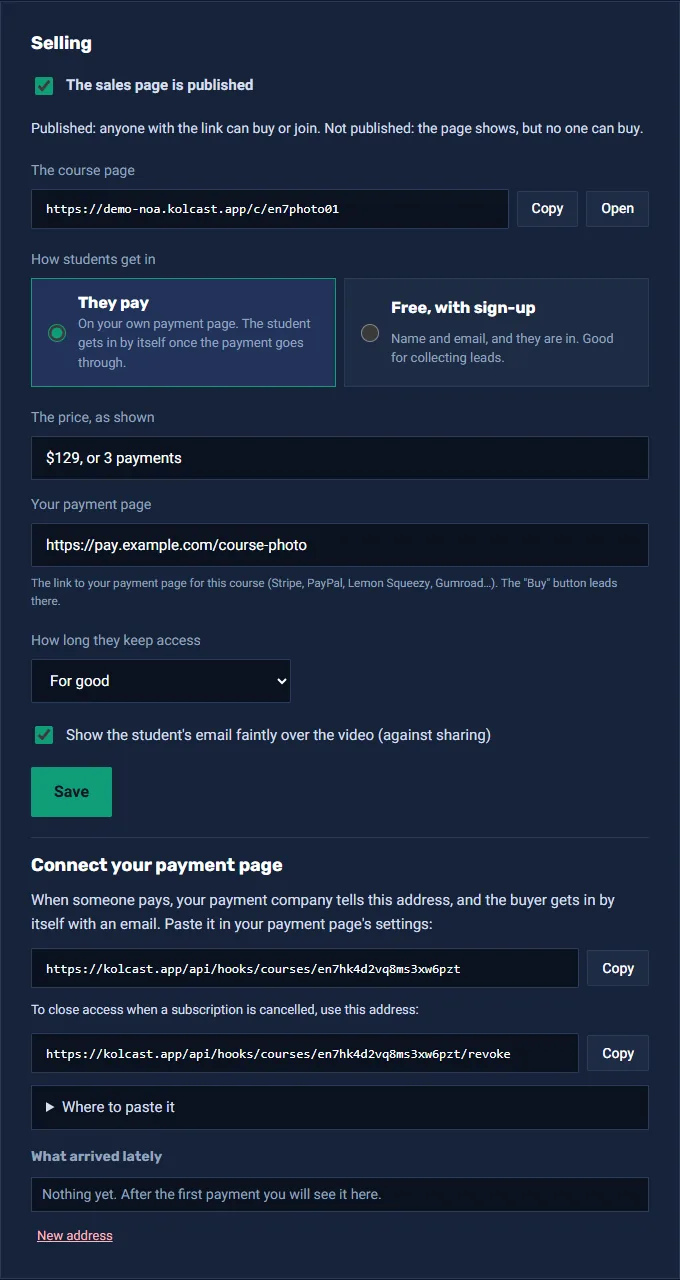
- In the "Selling" card, tick "The sales page is published".
- Choose "They pay" or "Free, with sign-up".
- For a paid course: type the price as it should show, and paste the link to your payment page (Stripe, PayPal, Lemon Squeezy, Gumroad…).
- Choose how long they keep access (for good, or a number of days), and tick whether to show the student's email over the video.
- Connect your payment page: copy the address in the card, and paste it in your payment page's settings. From now on, whoever pays gets into the course by themselves and gets an email.
- Under "What arrived lately" you see every notice that came from your payment company, so you know the connection works.
Students
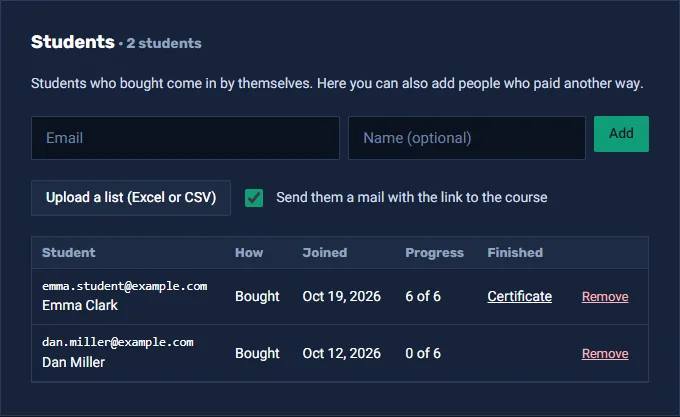
- Whoever bought or signed up shows up by themselves in the "Students" card, with their progress, and with their certificate once they finish.
- You can add students by hand or from an Excel file, for example people who paid by bank transfer, and send them an email with a link.
- "Remove" closes a student's access.
- The system emails students by itself: when a new lecture opens, when someone hasn't come in for a week, and when they finish.
Account settings, team, lists and billing
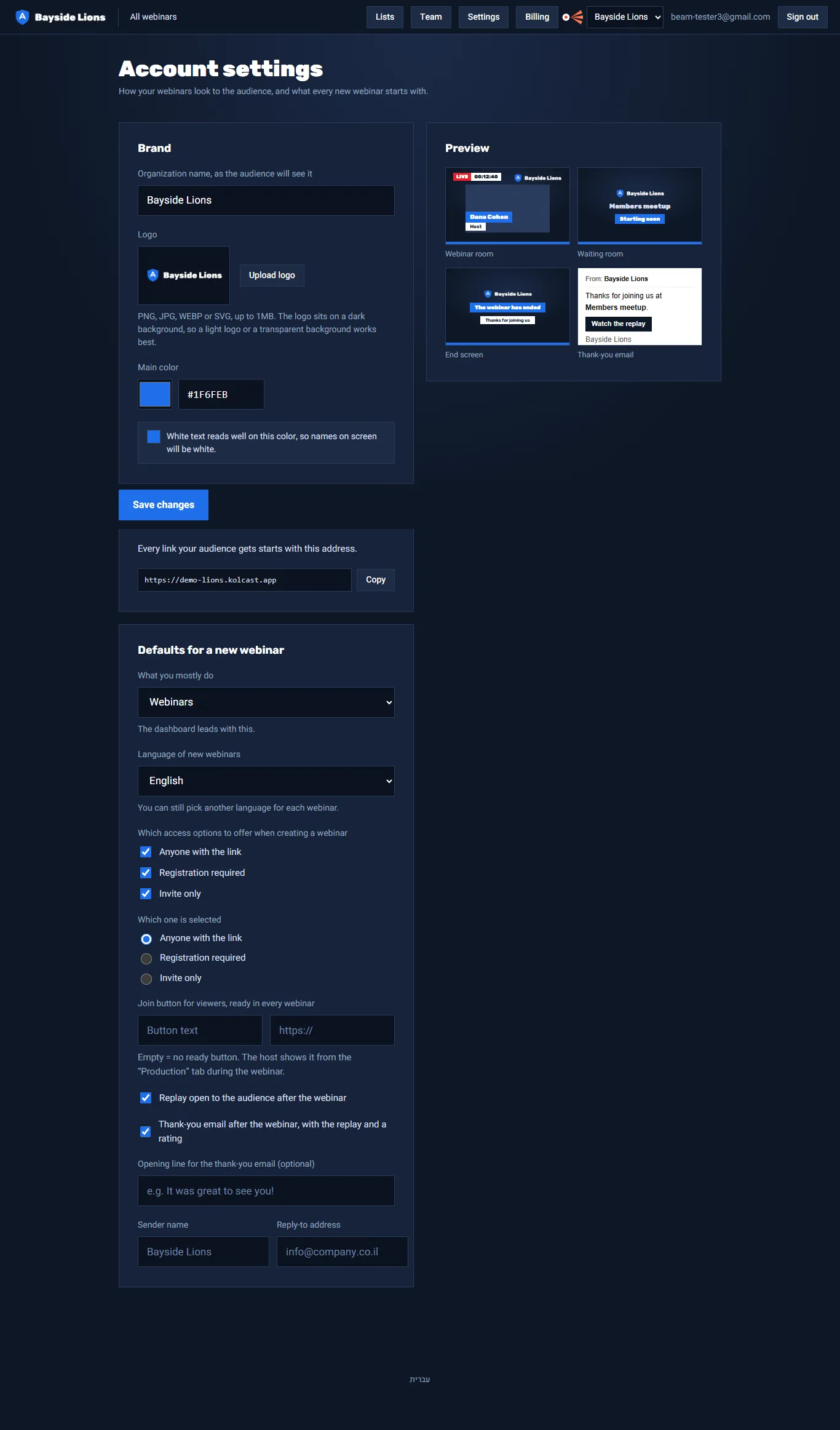
Settings Account owner and admin
- Brand: the organisation's name, logo (light or transparent works best), and main color. The system checks that the color is readable and suggests another shade if needed.
- Your address: the address every link your audience gets starts with.
- Defaults for a new webinar: what you mostly do, language, which ways in to offer, a ready join button, replay, a thank-you email with an opening line of your own, and the sender's name.
- Preview of the room, the waiting screen, the ending screen and the thank-you email.
Team
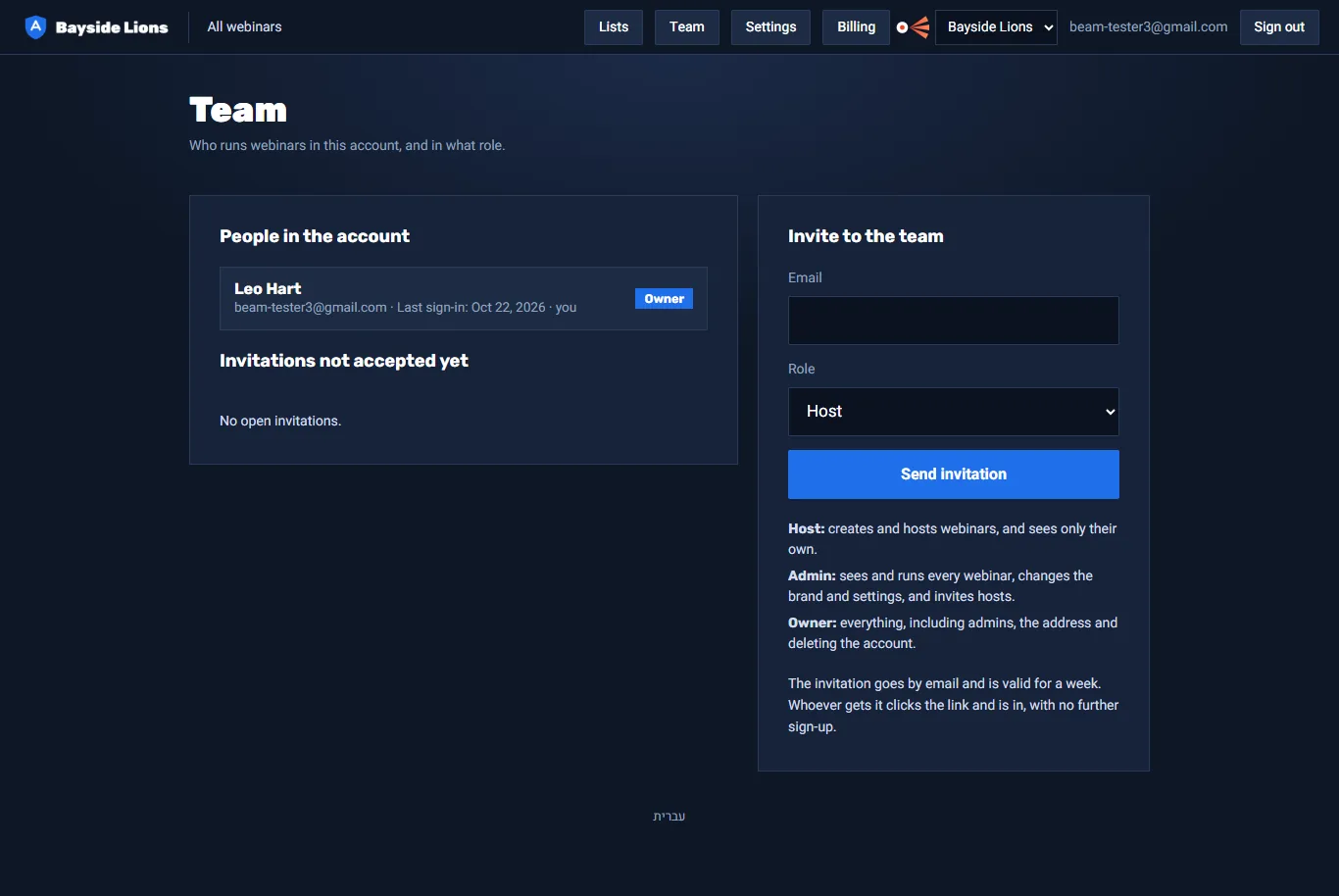
| Role | What they can do |
|---|---|
| Account owner | Everything, including billing, admins and deleting the account. One per account. |
| Admin | Sees and runs all webinars, changes the brand and settings, and invites hosts. |
| Host | Creates webinars and hosts them, and sees only their own webinars. |
Invite people in "Team": email, role, "Send invitation". The invitation is valid for a week, and whoever gets it comes in with one click. On the Free, Courses and Basic plans, up to 3 team members.
Invite lists
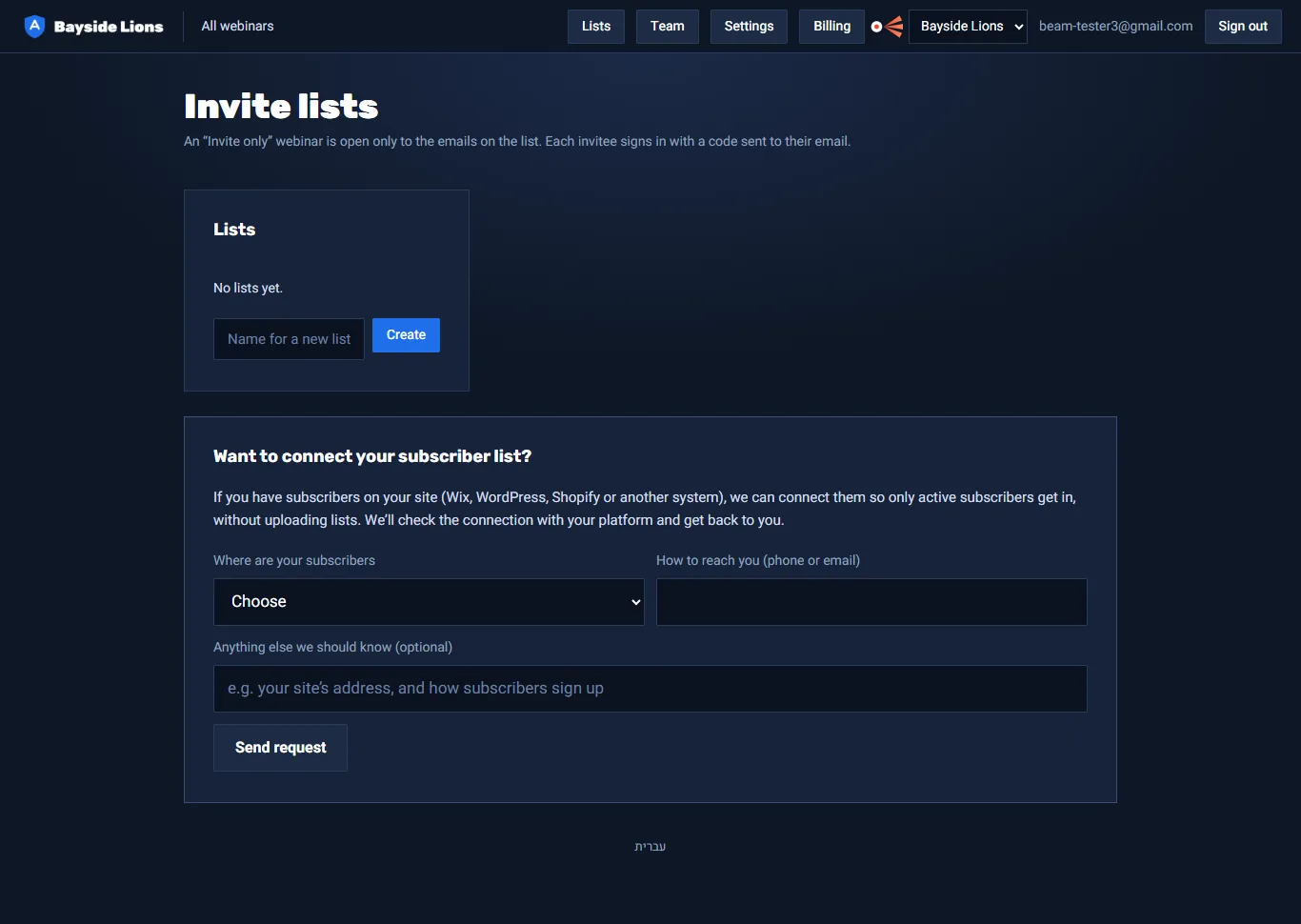
- In "Lists", create a list with a name.
- Upload an Excel or CSV file with a column of emails, or add them by hand. Duplicates aren't added.
- When creating a webinar, choose "Invite only" and the list.
Want subscribers from your own site to get in by themselves? Fill in the request to connect your subscriber list at the bottom of the screen, and we'll connect it.
Billing Account owner only
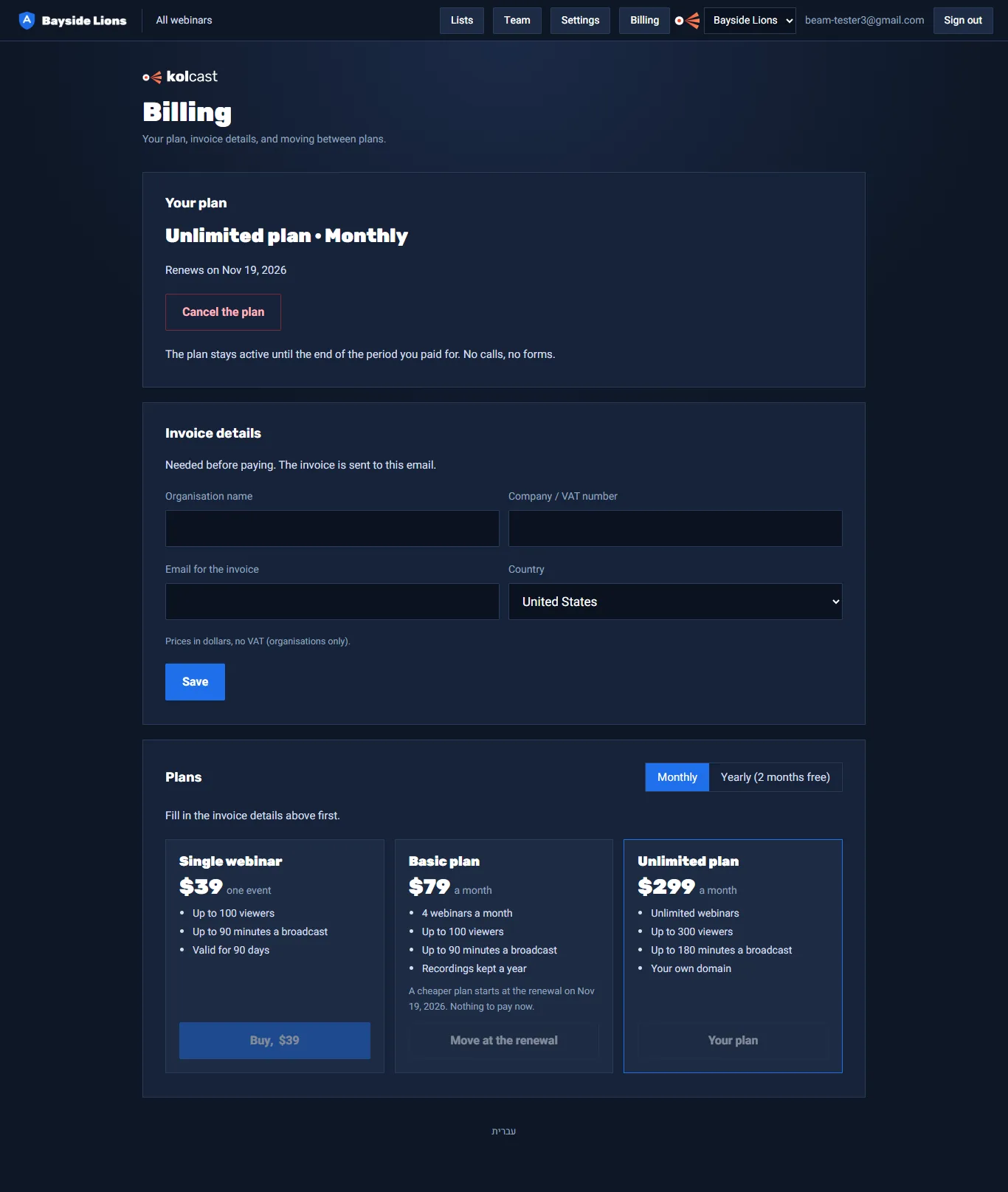
- Your current plan and when it renews.
- Invoice details: need to be filled in before the first payment.
- Plans, monthly or yearly (yearly = 10 months). An upgrade happens right away, and you pay only the difference. Moving to a cheaper plan happens at renewal.
- Cancelling the plan: one click. The plan stays active until the end of the period you paid for, and then the account moves to Free.
The audience: viewers and guests
ViewerJoining a webinar
Click the link you got. What happens depends on the way in the organisers chose:
- Open: type a name and click "Join the webinar".
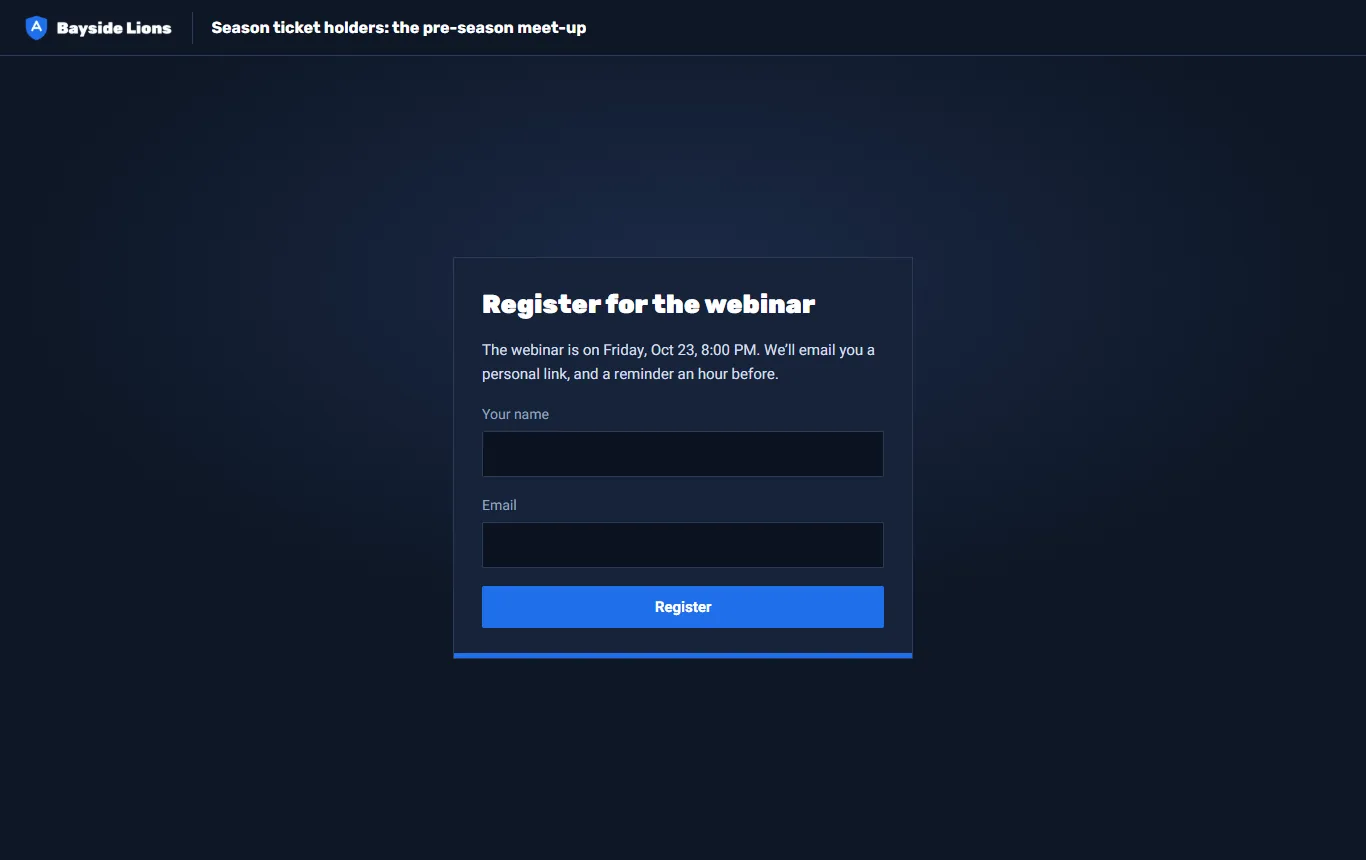
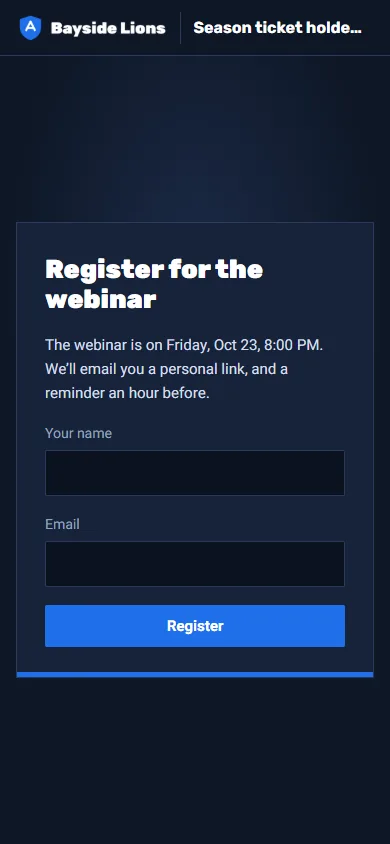
- With registration: name and email, and a 6-digit code sent by email. For a scheduled webinar you register ahead and get a personal link and a reminder an hour before.
- Invited: type the email the invitation came to, and you get a code.
- Subscribers: "Sign in with my account" on the organisers' site.
ViewerBefore and during the webinar
- Before it starts you see a countdown, and buttons to add it to your calendar. The screen switches to the webinar by itself when it starts.
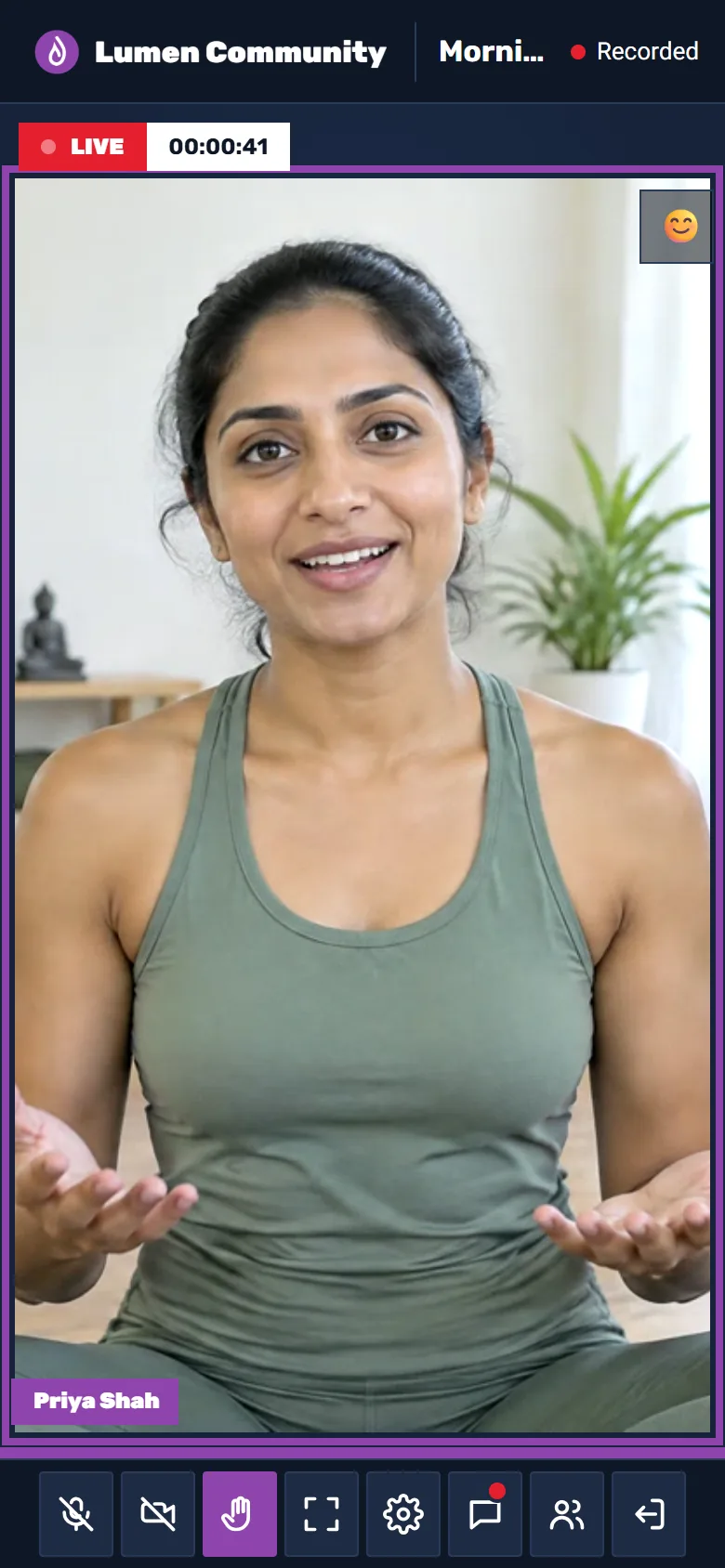
- During the webinar: chat, questions (vote on other people's questions), polls, reactions (👏 ❤️ 😂 😮 🔥), and the join button when the host shows it.
- "Ask to join the stage": if the host approves, your camera and microphone open and everyone sees you. "Leave the stage" takes you back to watching.
- When the webinar is full, you can leave your email and get the replay.
- After the webinar: the replay (if the organisers opened it), and a short "How was it?" question.
Podcast guest
- Click the link the host sent. No account needed.
- Check your camera and microphone (the bar moves when you speak), and click "Enter the studio".
- Nothing is recorded until the host clicks "Start recording".
- At the end: don't close the page until "Thank you, you can close this page." shows.
The student's side of a course
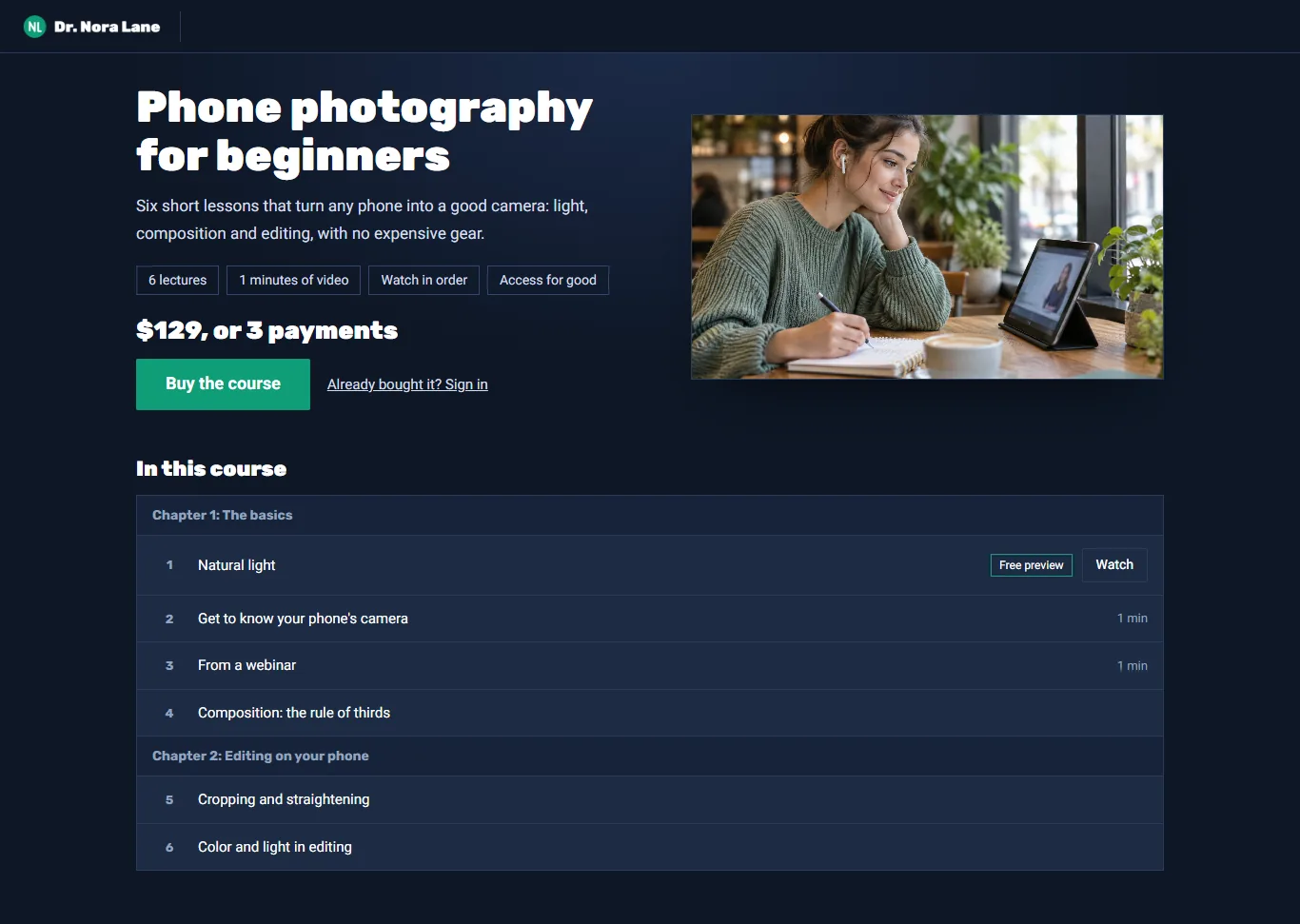
- The course page: description, the list of lectures, the price, and a free preview you can watch right away.
- Buying: "Buy the course" leads to the creator's payment page. Seconds after paying, an email arrives saying the course is open for you.
- A free course: "Join for free", name and email, and a code.
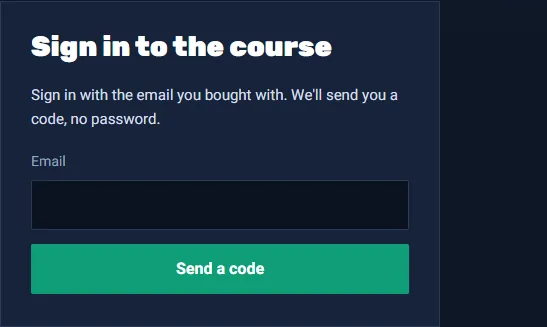
- Signing in: type the email you bought with, and you get a code. No password. The device remembers you for 90 days.
Watching
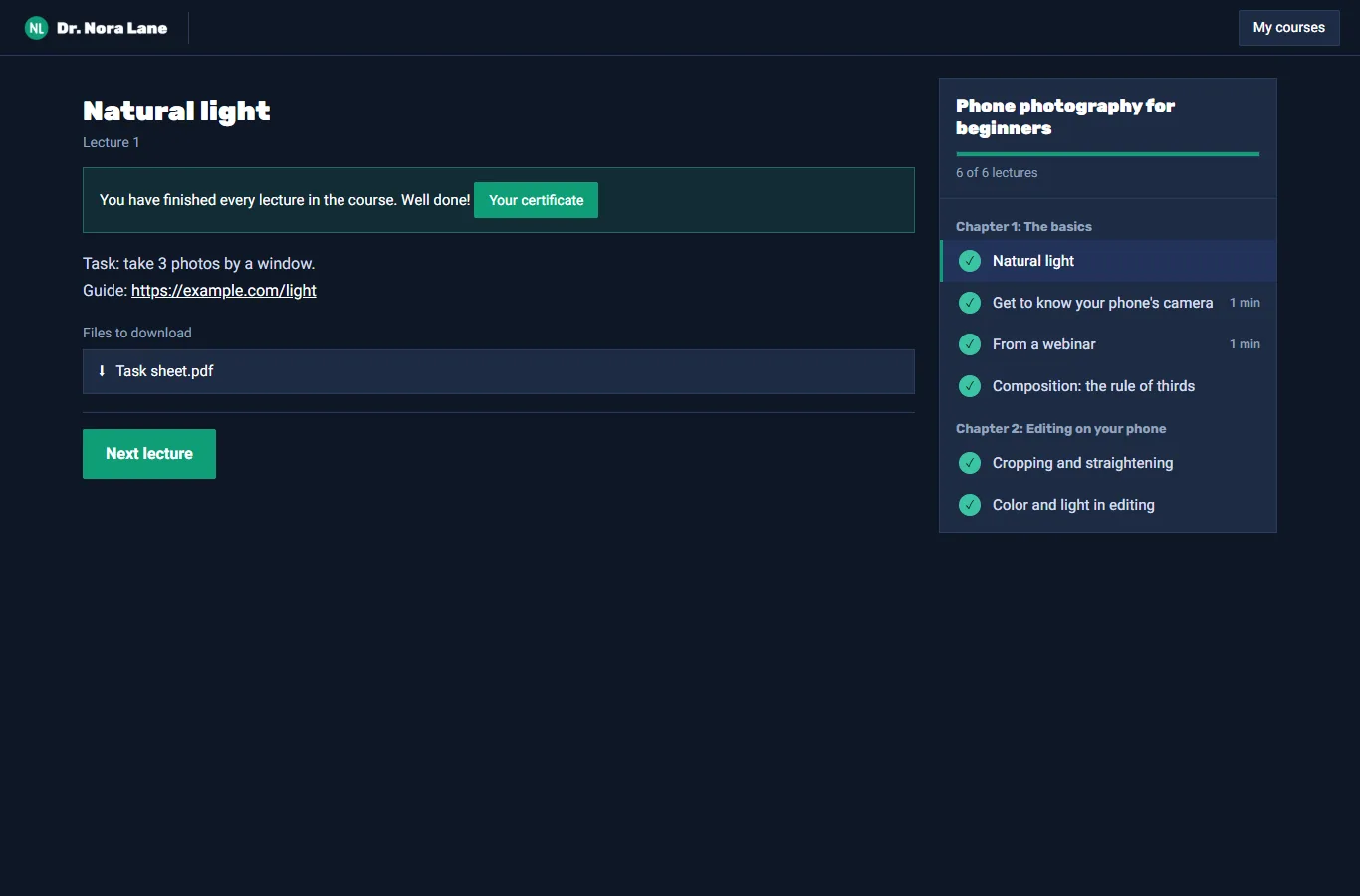
- The video at the top, the list of lectures on the side, and a progress bar.
- Pick up where you stopped, even from another device.
- A lecture with 🔒 opens after you finish the previous one, or on the date written next to it, depending on what the creator chose.
- A lecture counts as done after 90% of the video, or after passing the quiz at its end.
- The course plays on up to two devices at a time.
- "My courses" gathers all your courses from the same creator.
Quiz and certificate
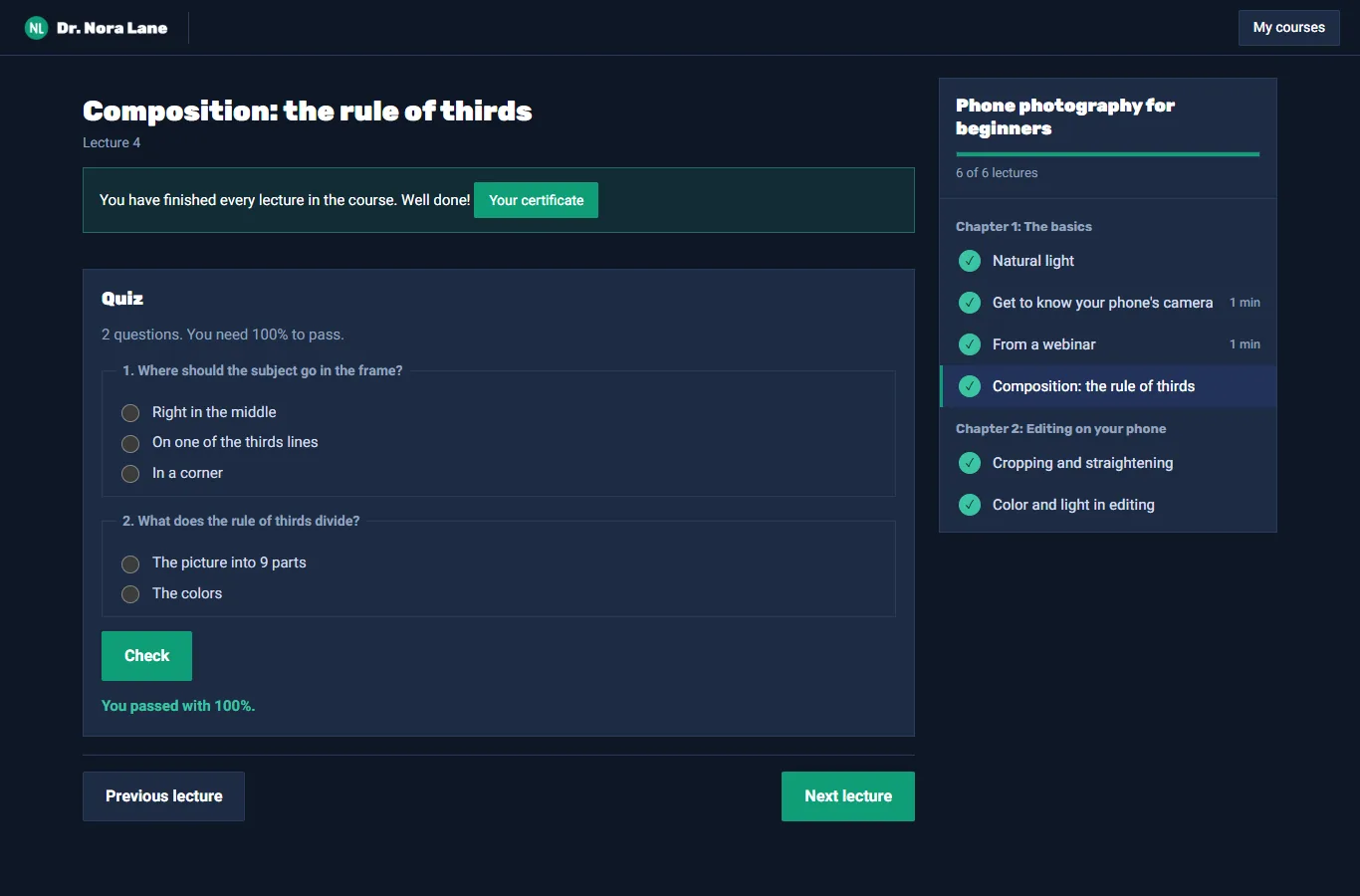
- Answer every question and click "Check". You see what's right and what isn't, and you can try again.
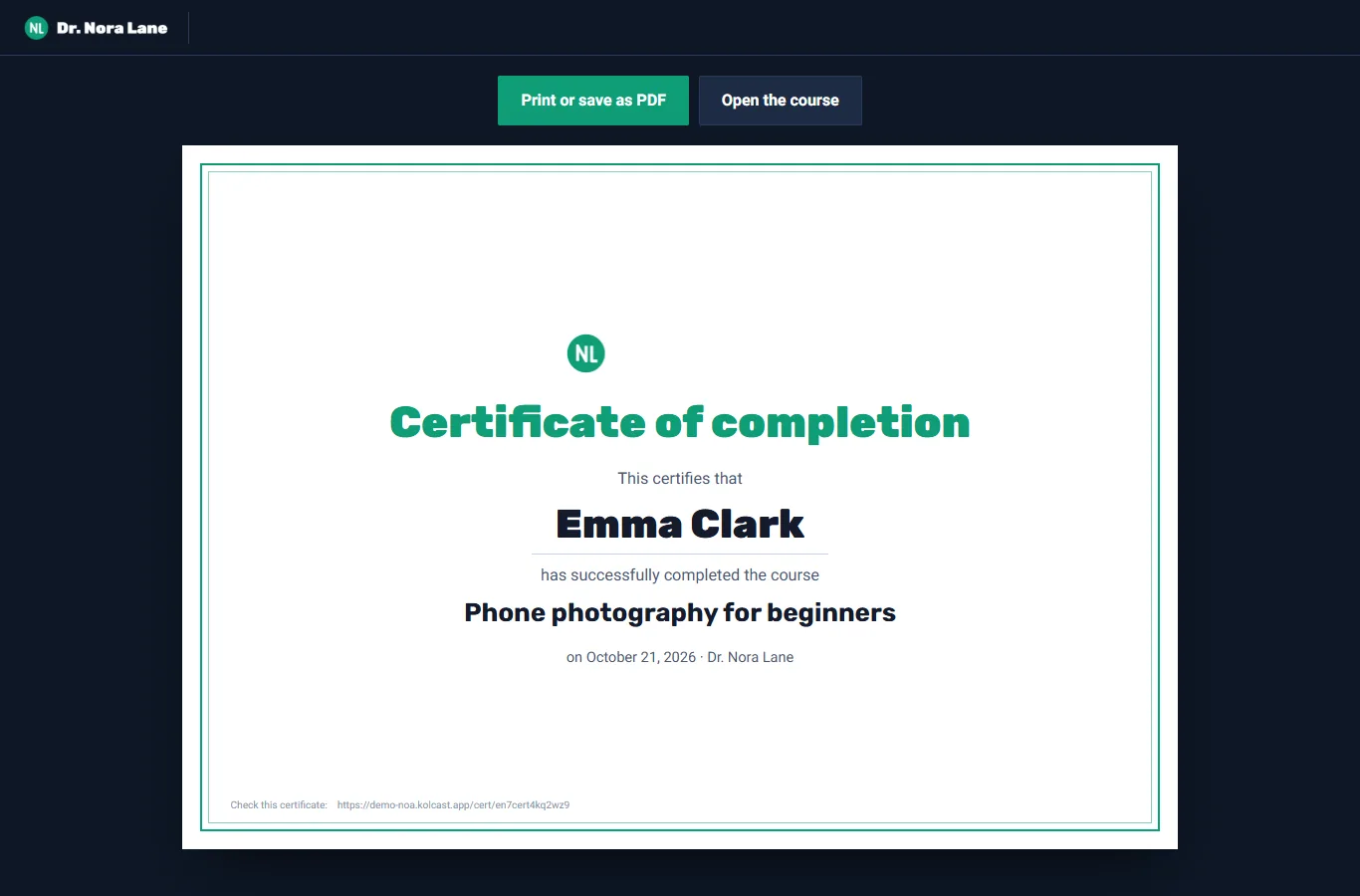
- When you finish every lecture, an email arrives, and "Your certificate" shows in the course. Type your name once, then print it or save it as a PDF.
When something doesn't work
| What happens | What to do |
|---|---|
| "No access to the camera or microphone" | Click the lock icon next to the address in your browser and allow the camera and microphone. If that doesn't help, close other apps using the camera (Zoom, Teams). |
| The wrong camera or microphone | "Settings", then choose the camera and microphone. The change applies right away. |
| The code didn't arrive | Check your spam folder. You can ask again, up to 3 times in 15 minutes. The code is valid for 10 minutes. |
| "Connection lost. Reconnecting…" | Wait a few seconds. The room reconnects by itself. |
| "You joined the webinar from somewhere else" | The same account opened on another device or tab. It stays open in one place at a time. |
| "This browser can’t record" | Host webinars and record podcasts from Chrome or Edge on a computer. |
| Captions don't work | Captions work only for whoever speaks from Chrome or Edge on a computer. |
| "No webinars left" | On the dashboard: a single webinar, or moving to a bigger plan. |
| A guest on a phone "disappeared" in the middle of a recording | The phone sent the page to the background. Bring the page back and keep the screen on. |
| A student: "The course is open on two other devices right now" | Close the course on one of the devices, and it plays again. |
Appendix: plans, how long recordings are kept, and emails
The plans
| Free | Single webinar | Courses | Basic | Unlimited | |
|---|---|---|---|---|---|
| Price | 0 | $39 | $49 a month | $79 a month | $299 a month |
| Webinars | One | One, valid 90 days | The free one only | 4 a month | Unlimited |
| Viewers / minutes | 50 / 60 | 100 / 90 | 50 / 60 | 100 / 90 | 300 / 180 |
| Team | 3 | – | 3 | 3 | Unlimited |
| Courses | 1, up to 3 lectures | – | 3, up to 40 lectures | 3, up to 20 lectures | Unlimited |
| Students a month | 10 | – | 500 | 100 | Unlimited |
| Your own domain | No | – | No | No | Yes |
Yearly = the price of 10 months. On the free plan a small Kolcast mark shows.
How long recordings are kept
| Free | Single webinar | Basic | Unlimited | |
|---|---|---|---|---|
| Webinar recording | 14 days | 60 days | A year | As long as the plan is active |
| Podcast files | 14 days | 30 days | 90 days | A year |
A week before the end, a reminder email arrives. After that the recording is hidden, and 30 days later it is deleted.
The emails the system sends
| To whom | When |
|---|---|
| The audience | Sign-in code · You're registered · Reminder an hour before · The time changed · The webinar was cancelled · Thank you after the webinar, with the replay and a rating |
| Students | Sign-in code · Your course is open · A new lecture opened · Carrying on? (after a week) · You finished the course |
| The team and the account owner | Sign-in code · Team invitation · The episode's files are ready · Unanswered questions from an automated webinar · An automated webinar that didn't start · A recording about to expire · Billing (a renewal that failed, pause, end, refund) |
Emails to your audience and students go out in your organisation's name and in the language of the webinar or course.